| Tool | Purpose | Link |
|---|---|---|
| MetaMask | Browser wallet. Stores tokens, signs transactions. | metamask.io |
| Sepolia Faucet | Dispenses free test ETH for transaction fees | Google Cloud Faucet |
| OpenZeppelin Wizard | Generates token code from checkboxes | wizard.openzeppelin.com |
| Remix IDE | Compiles and deploys your code to the blockchain | remix.ethereum.org |
| Sepolia Etherscan | Blockchain explorer. Proves your token exists. | sepolia.etherscan.io |
What does "deploy a token" actually mean?
A token is a program (called a "smart contract") running on the Ethereum blockchain. It tracks who owns how many tokens and handles transfers. "Deploying" means uploading that program to the blockchain, where it becomes permanent and public. Anyone can then see your token on Etherscan, and the rules you set (total supply, who can mint more) are locked in.
The Sepolia testnet is a practice version of Ethereum. It works identically to the real thing, but the currency has no value. You can deploy, test, and redeploy as many times as you want at zero cost.
Phase 1 Install MetaMask ~10 min
A crypto wallet is your identity on the blockchain. Without it, you cannot sign transactions or prove you own anything. MetaMask creates a cryptographic key pair that becomes your on-chain identity: a public address that anyone can see and send tokens to, and a private key that only you control and that authorizes every transaction you make.
Step 1: Install the Extension
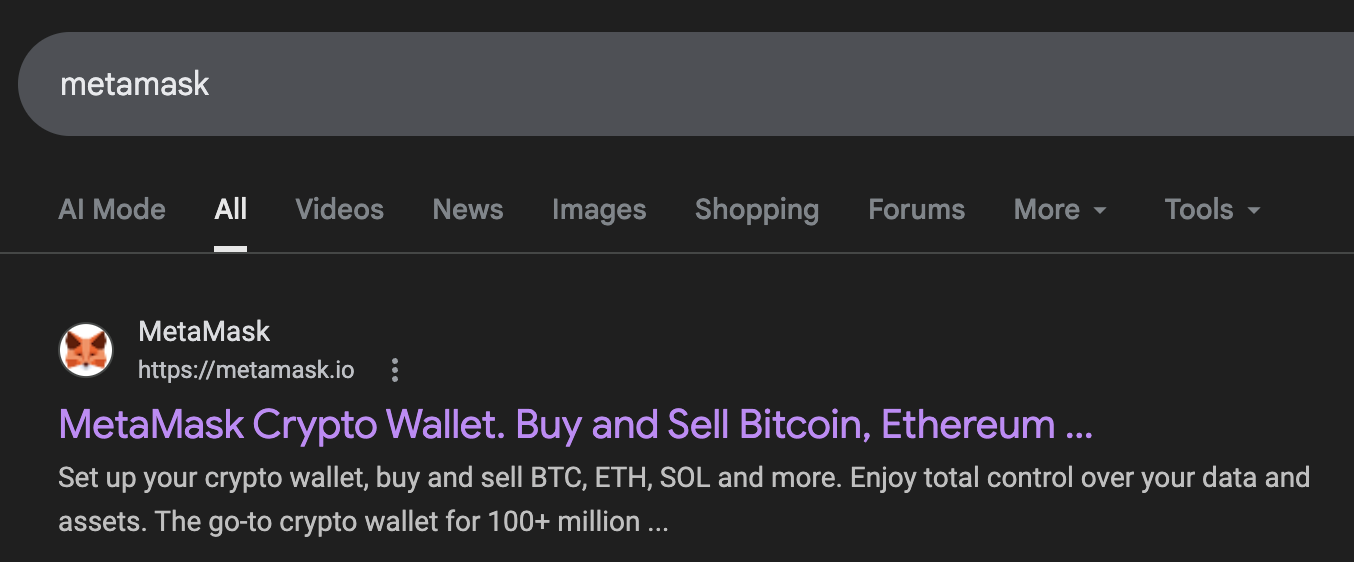
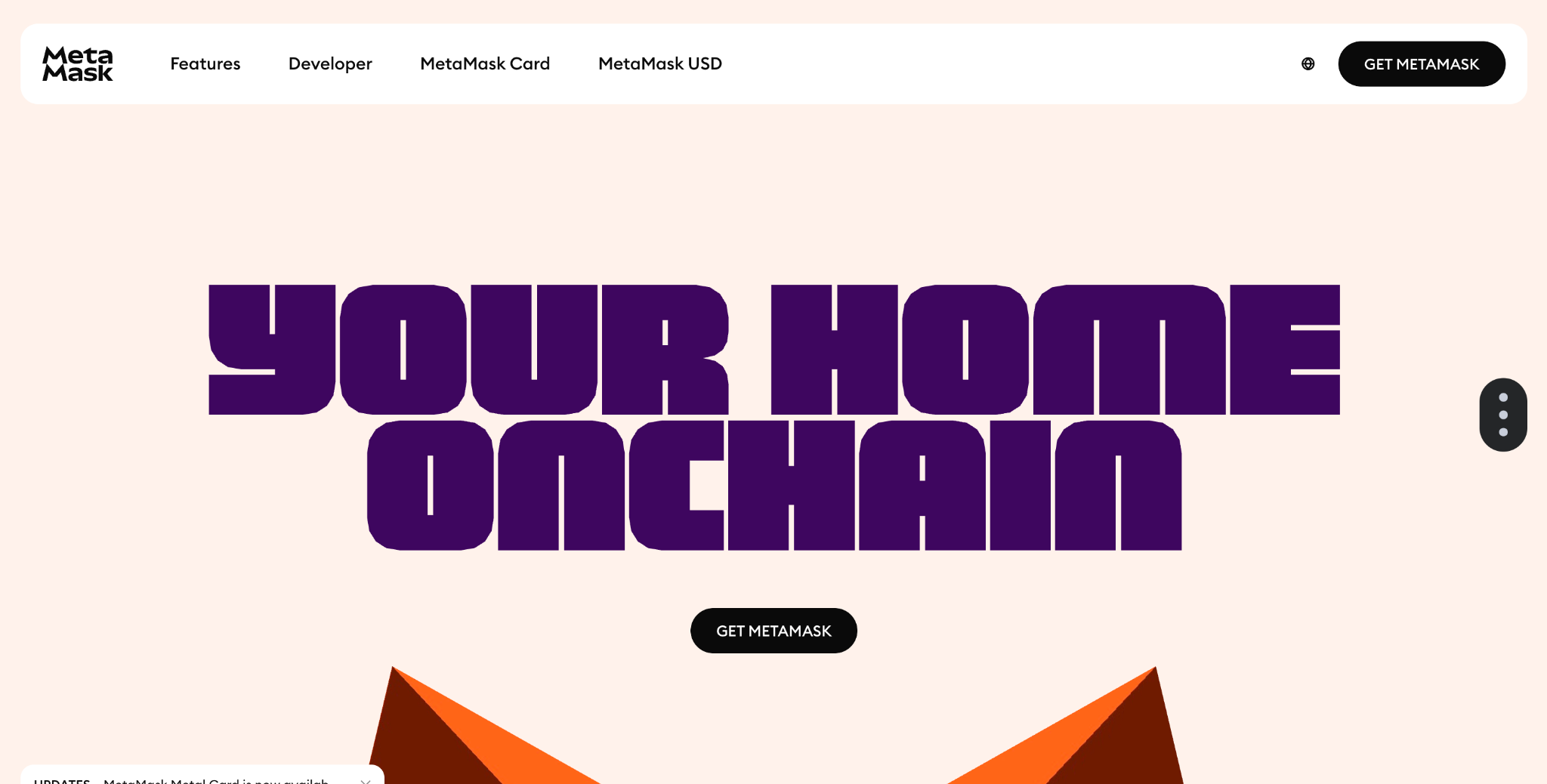
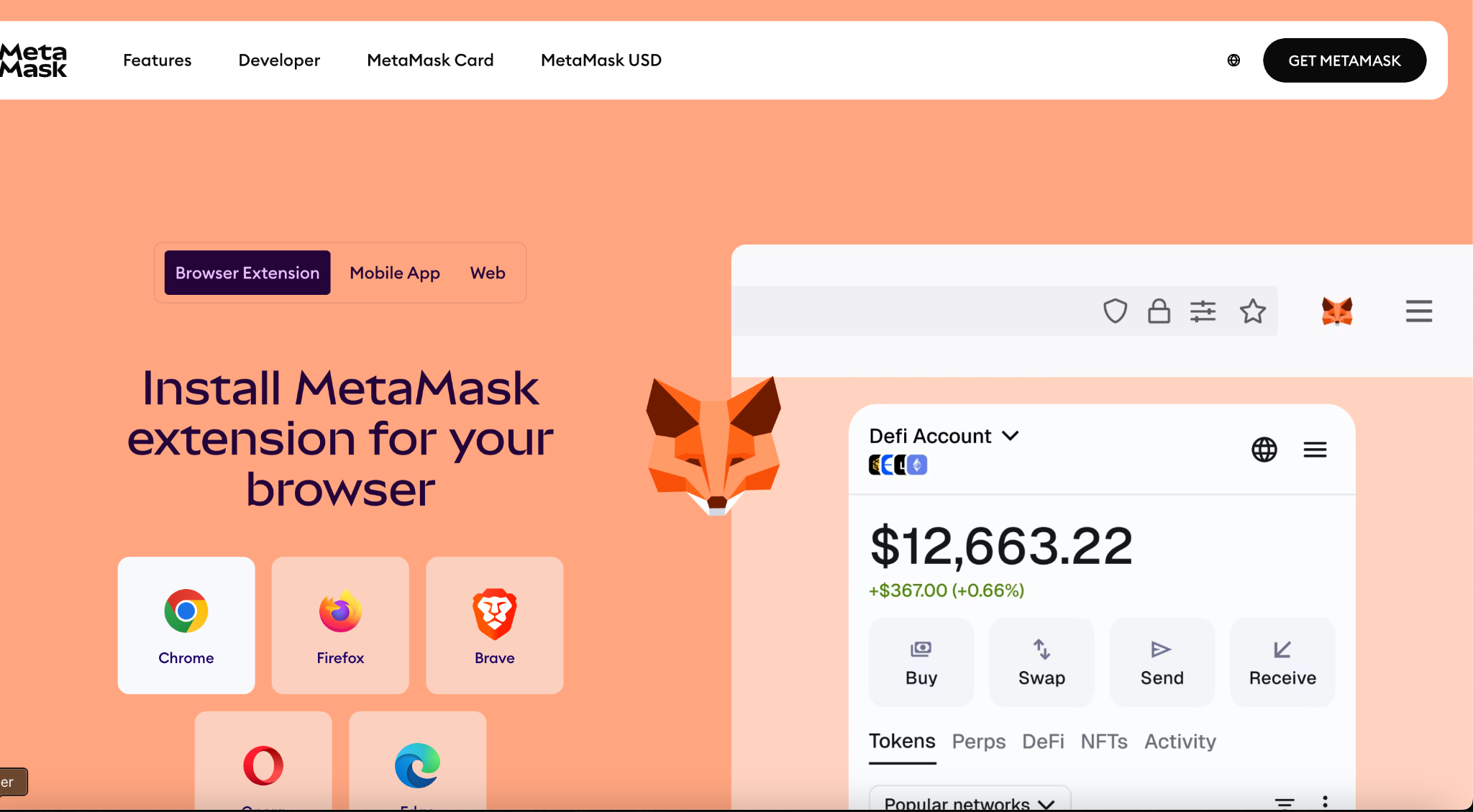
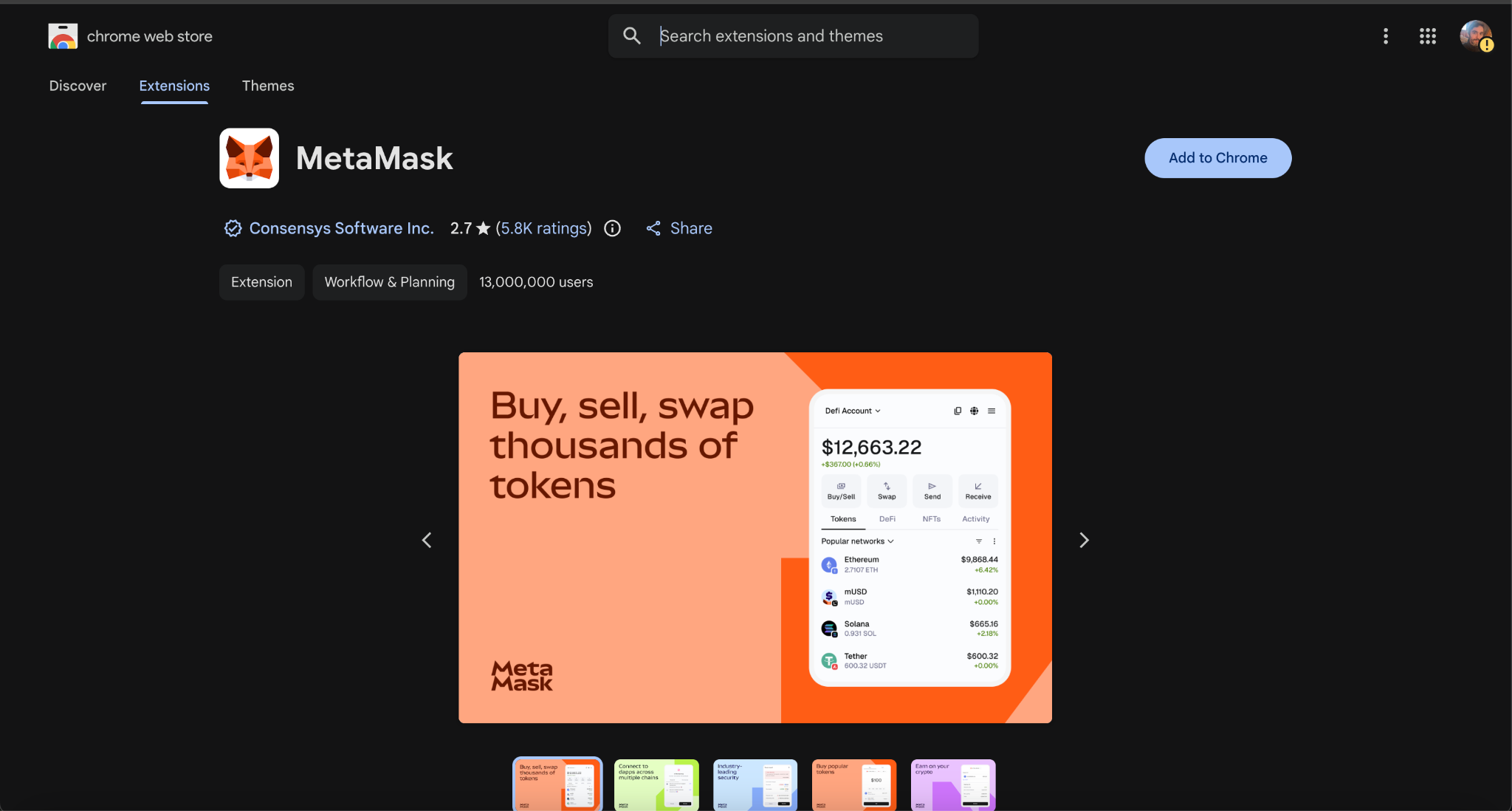
Search for "MetaMask" or go to metamask.io/download. Click "Add to Chrome" (or your browser).
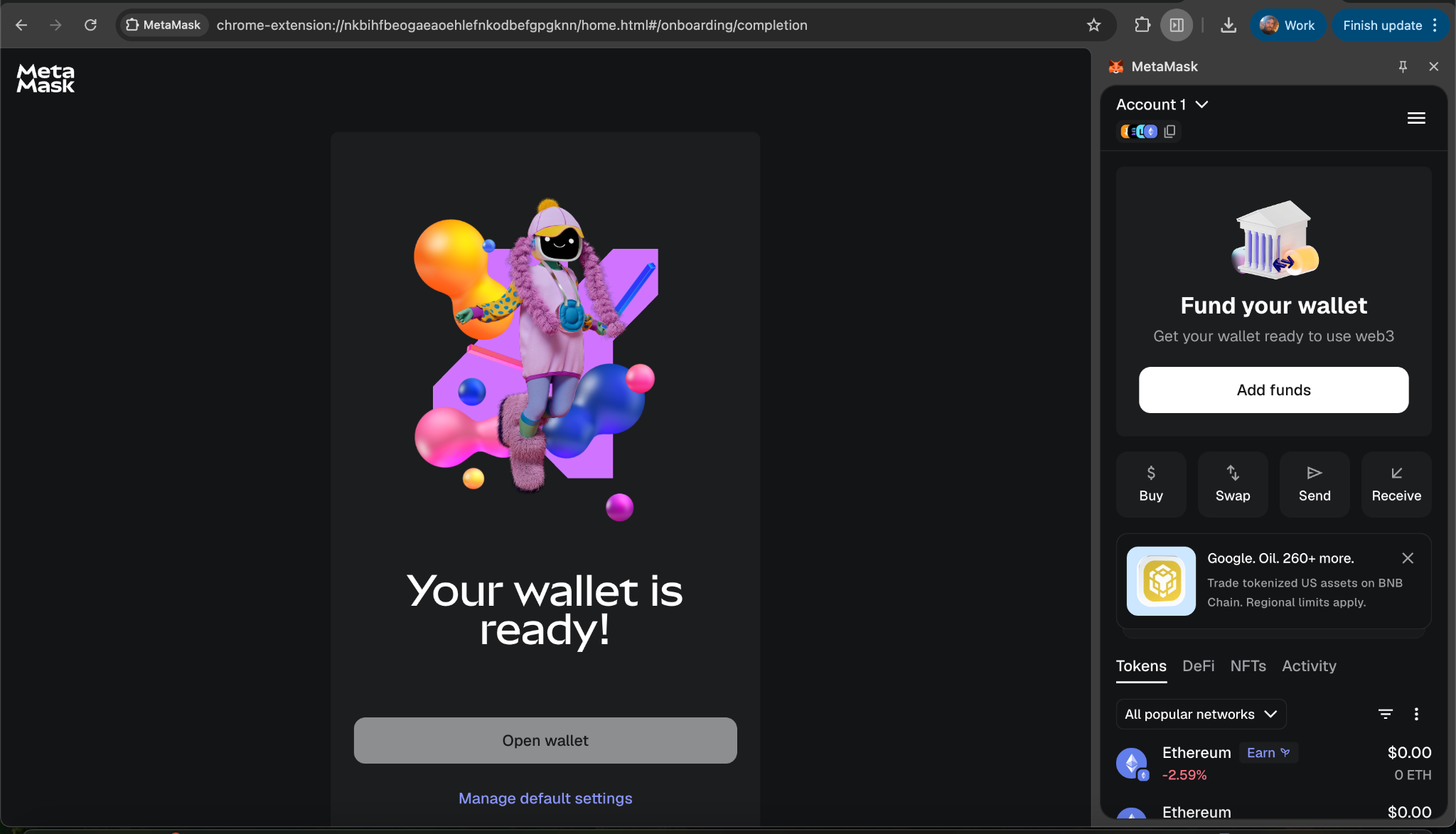
After installation, click the puzzle piece icon in your toolbar to find MetaMask. Pin it to keep the fox visible.
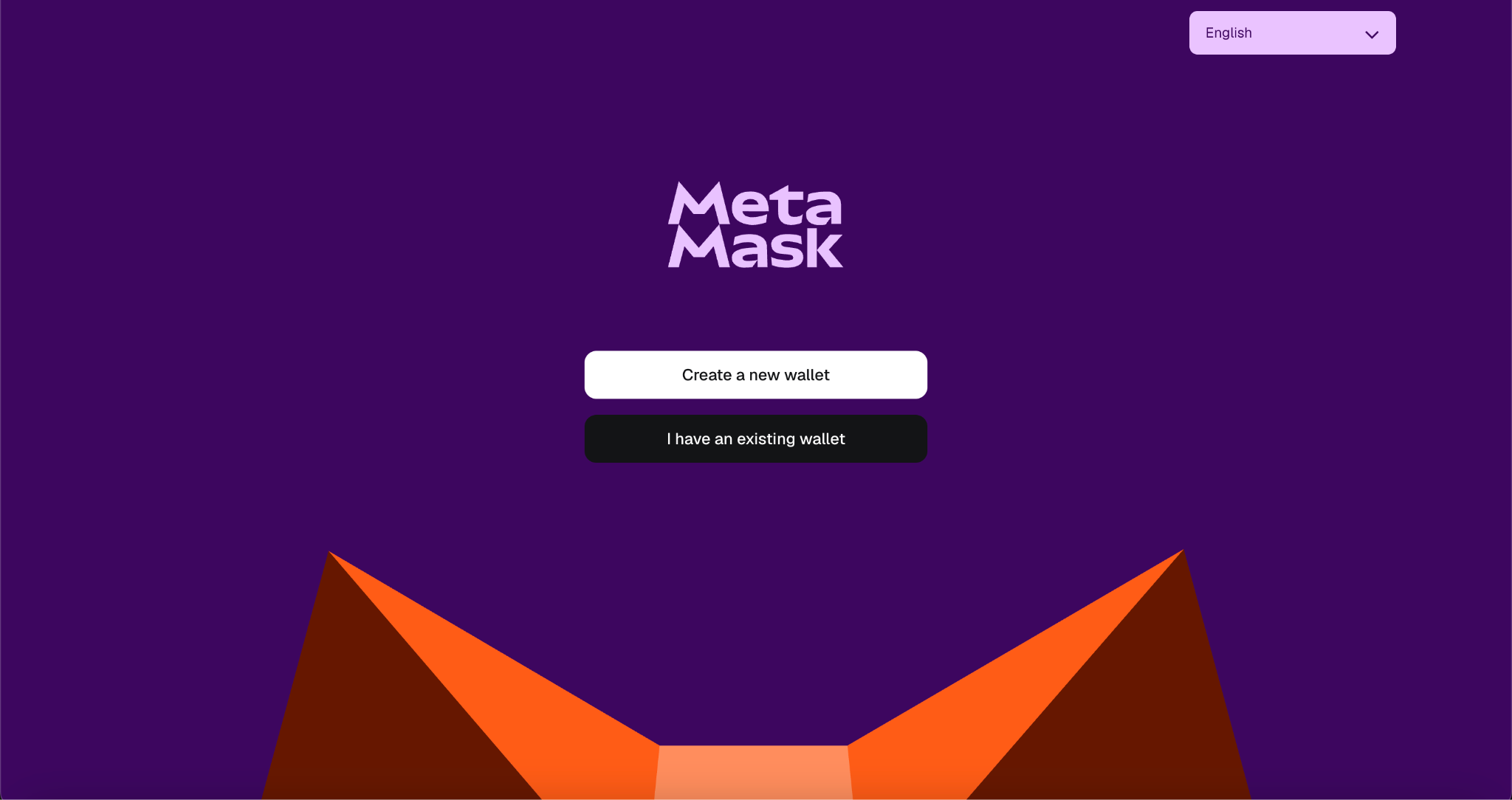
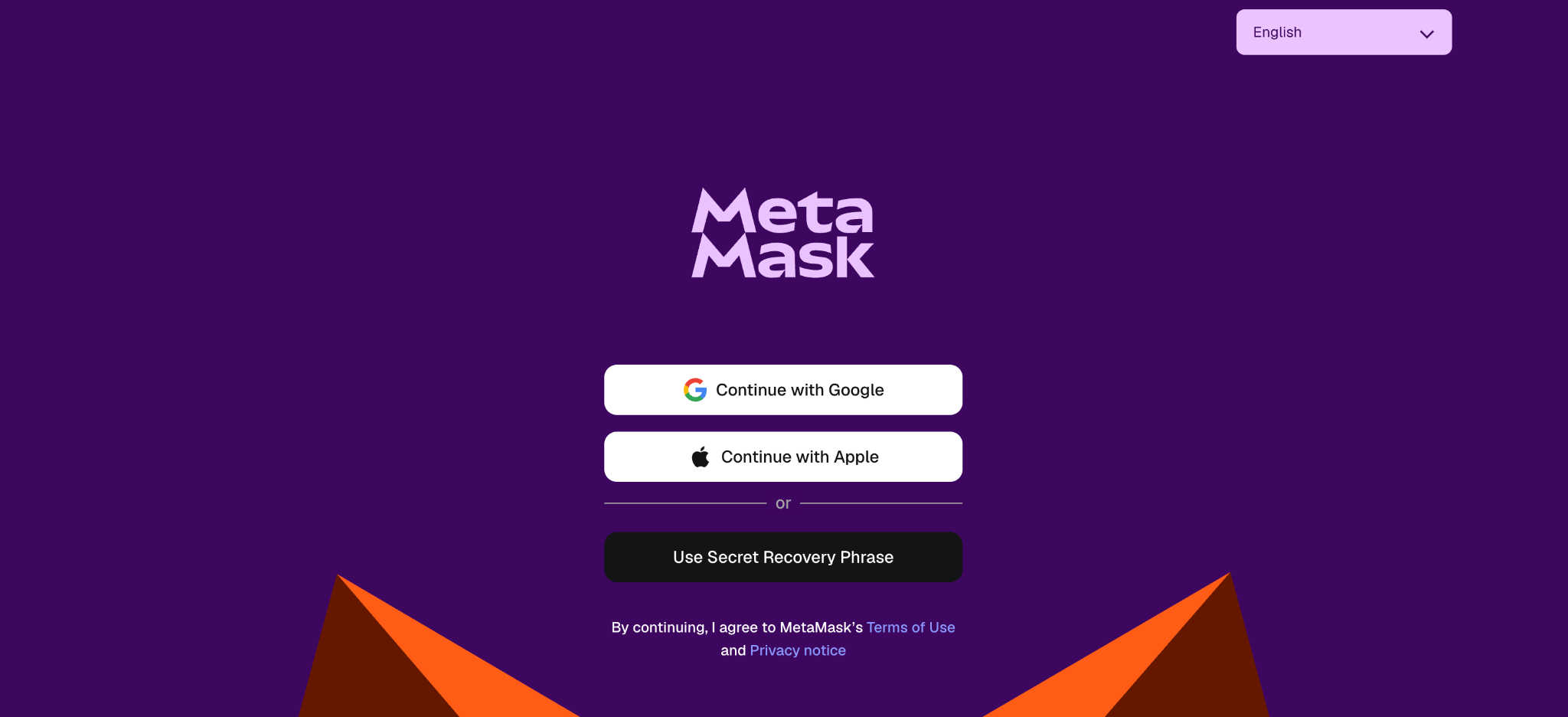
Click the fox icon. MetaMask opens and asks how to set up your wallet. You'll see options for Google, Apple, or Secret Recovery Phrase.
Click "Use Secret Recovery Phrase" (the black button at the bottom), not Google or Apple. This creates a standalone wallet that all crypto tools expect. The social login options work differently and may cause issues later.
Step 2: Create Your Wallet
Click "Create a new wallet."
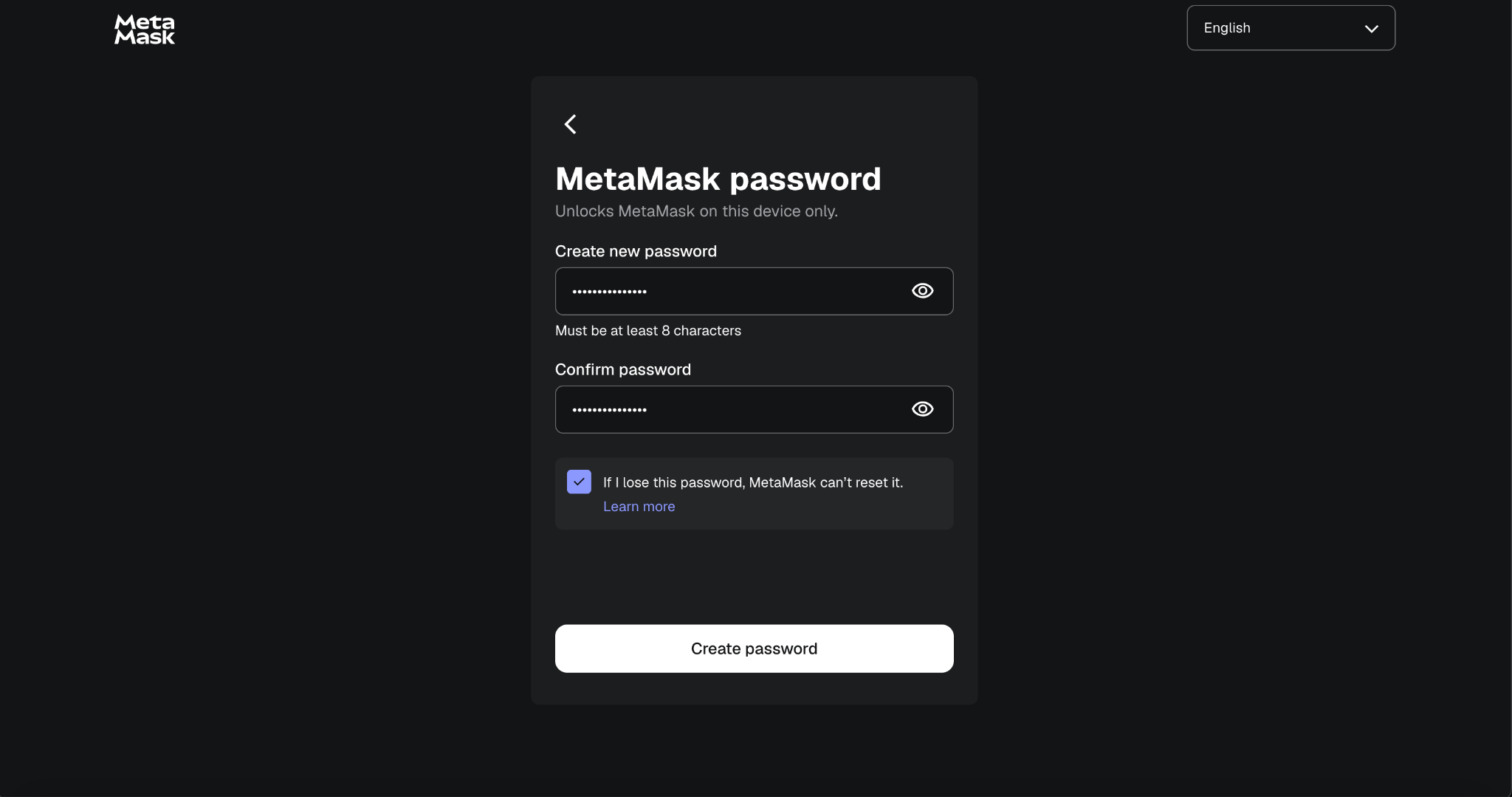
Create a password (at least 8 characters). Write it down. MetaMask cannot recover it if you forget.
MetaMask now shows your Secret Recovery Phrase: 12 random words. Click "tap to reveal" to see them. Write these down on paper. This phrase is the master key to your wallet. For this class exercise the stakes are low (test tokens have no value), but in real crypto, losing this phrase means losing everything in the wallet permanently.
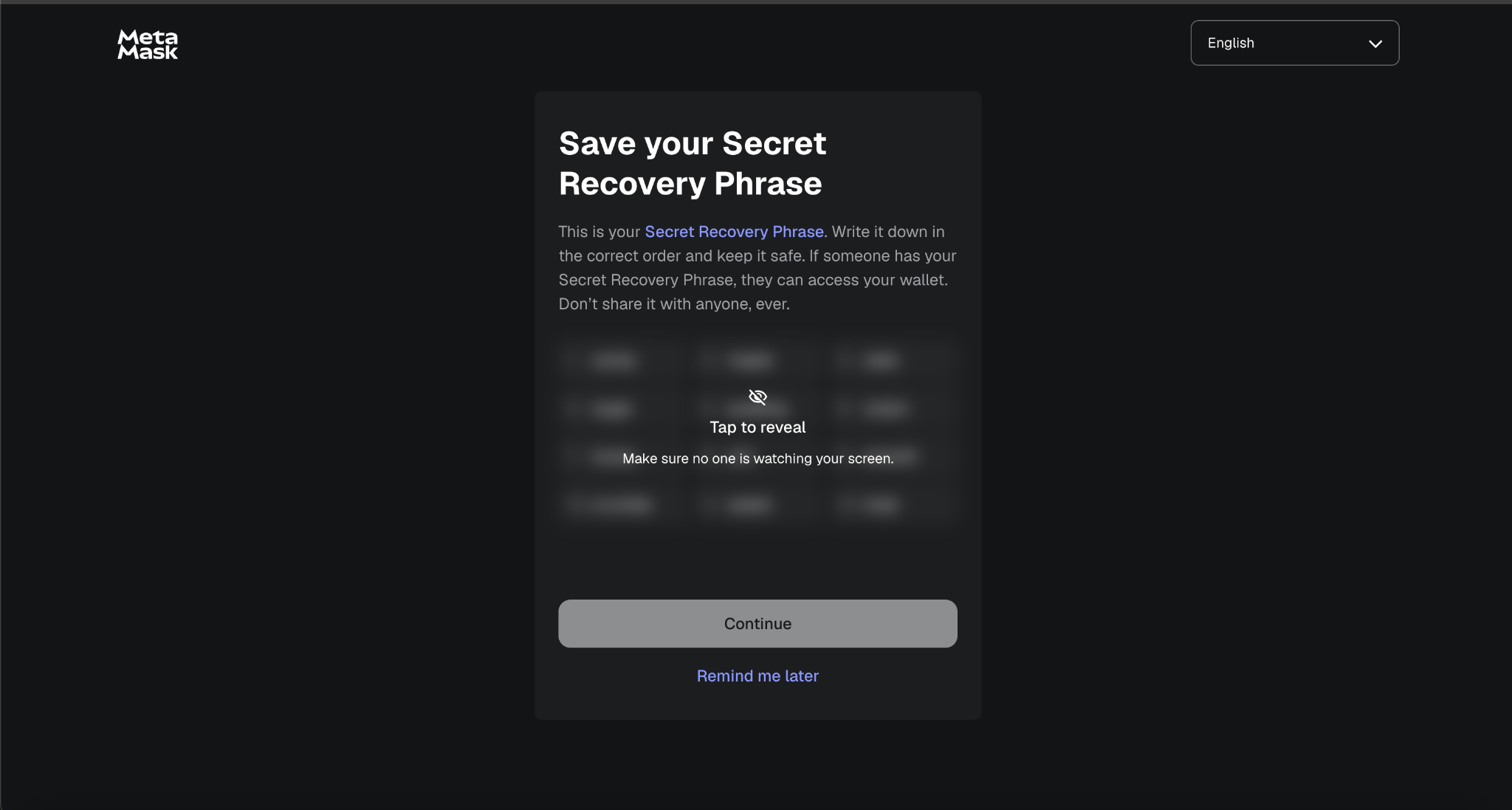
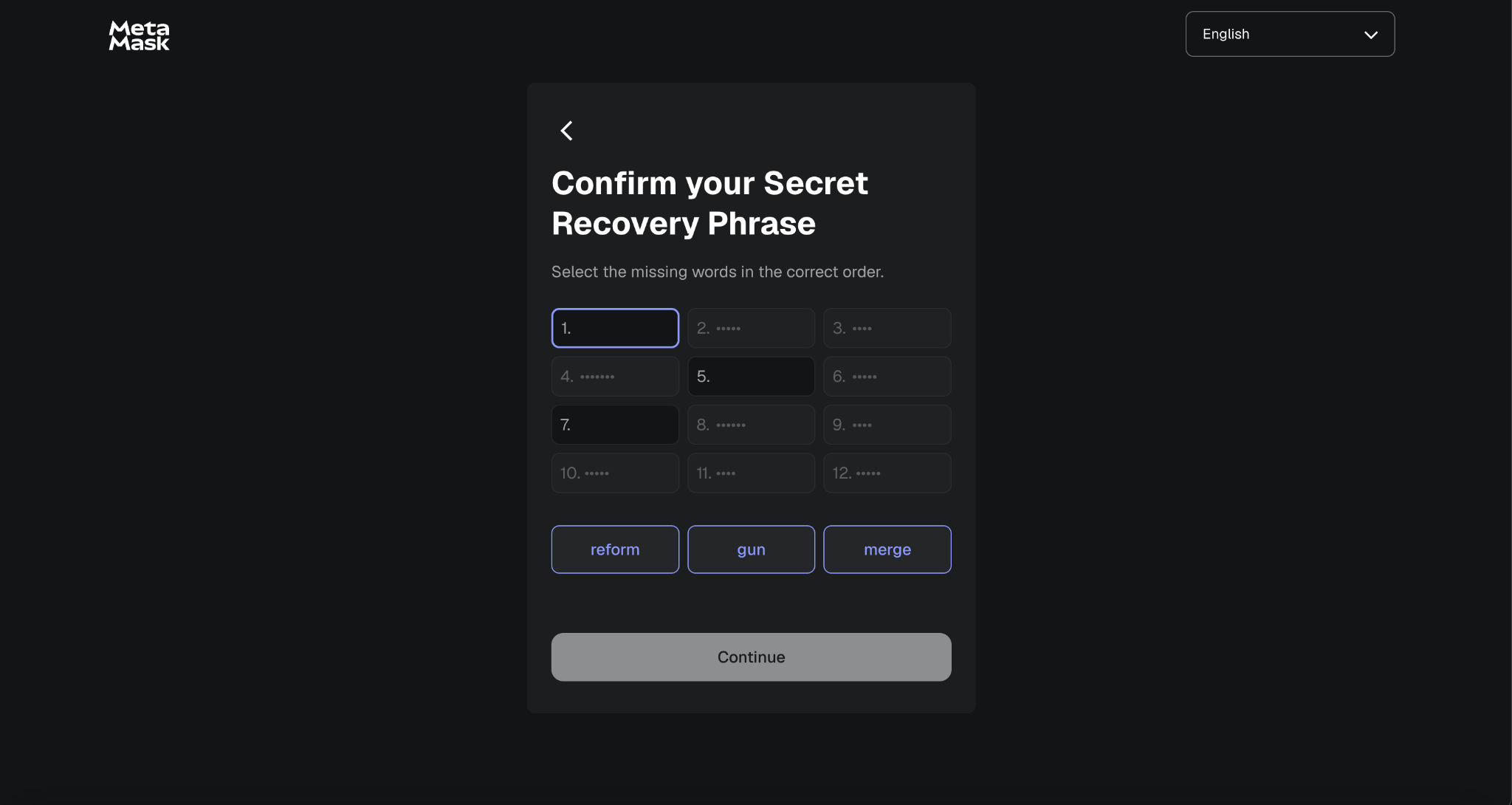
Click "Continue." MetaMask asks you to confirm the phrase by filling in the missing words in the correct order.
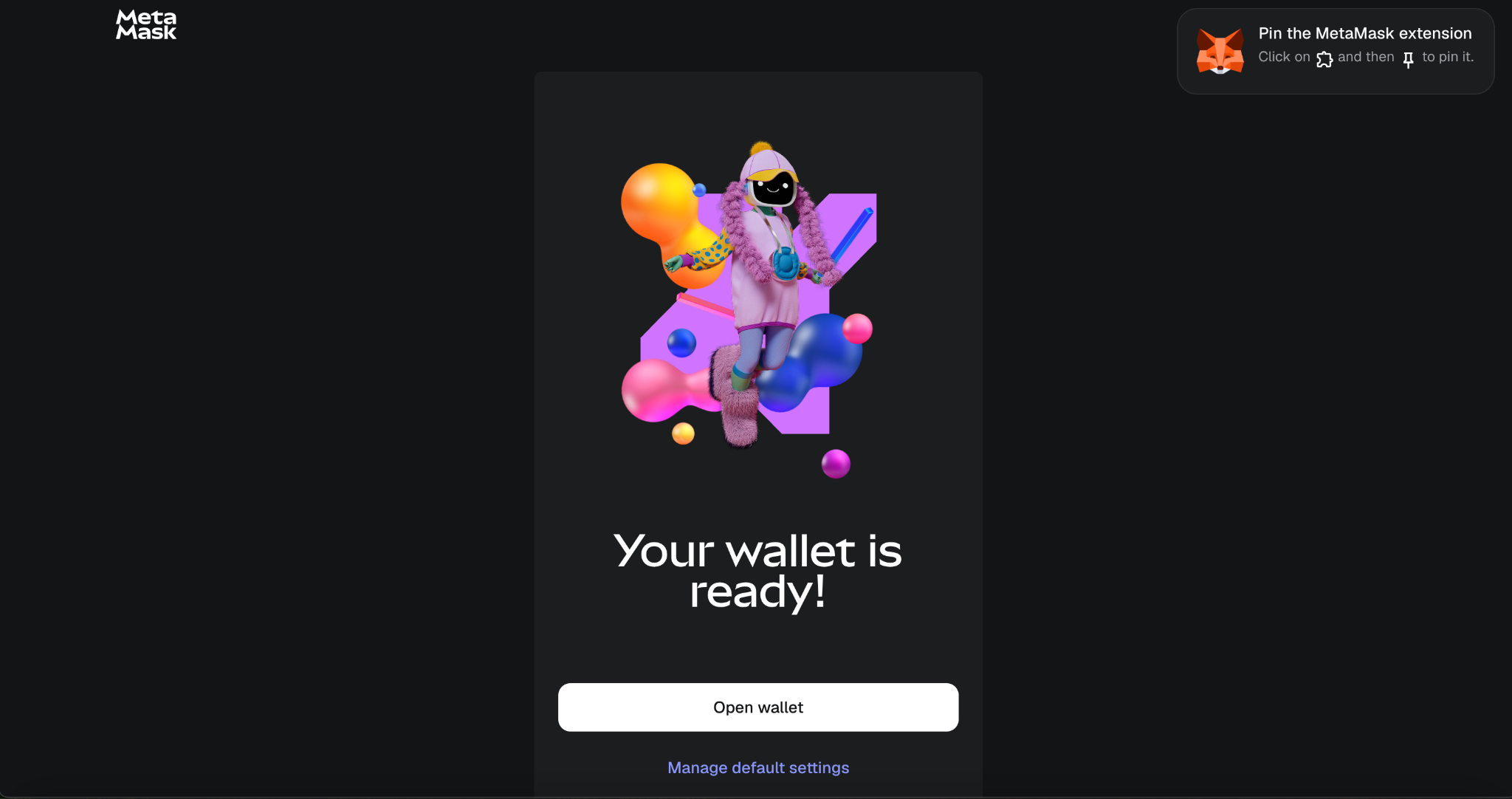
Decline data sharing if asked. Click "Open wallet."
What is a "wallet" in crypto?
A crypto wallet does not hold money the way a physical wallet does. It holds keys: a public key (your wallet address, which you share freely) and a private key (derived from your recovery phrase, which you never share). The blockchain itself holds your balances. The wallet is the tool that proves you are the owner and lets you authorize transactions.
Step 3: Switch to Sepolia Test Network
By default MetaMask shows the real Ethereum network where transactions cost real money. You need to switch to Sepolia, the free practice network.
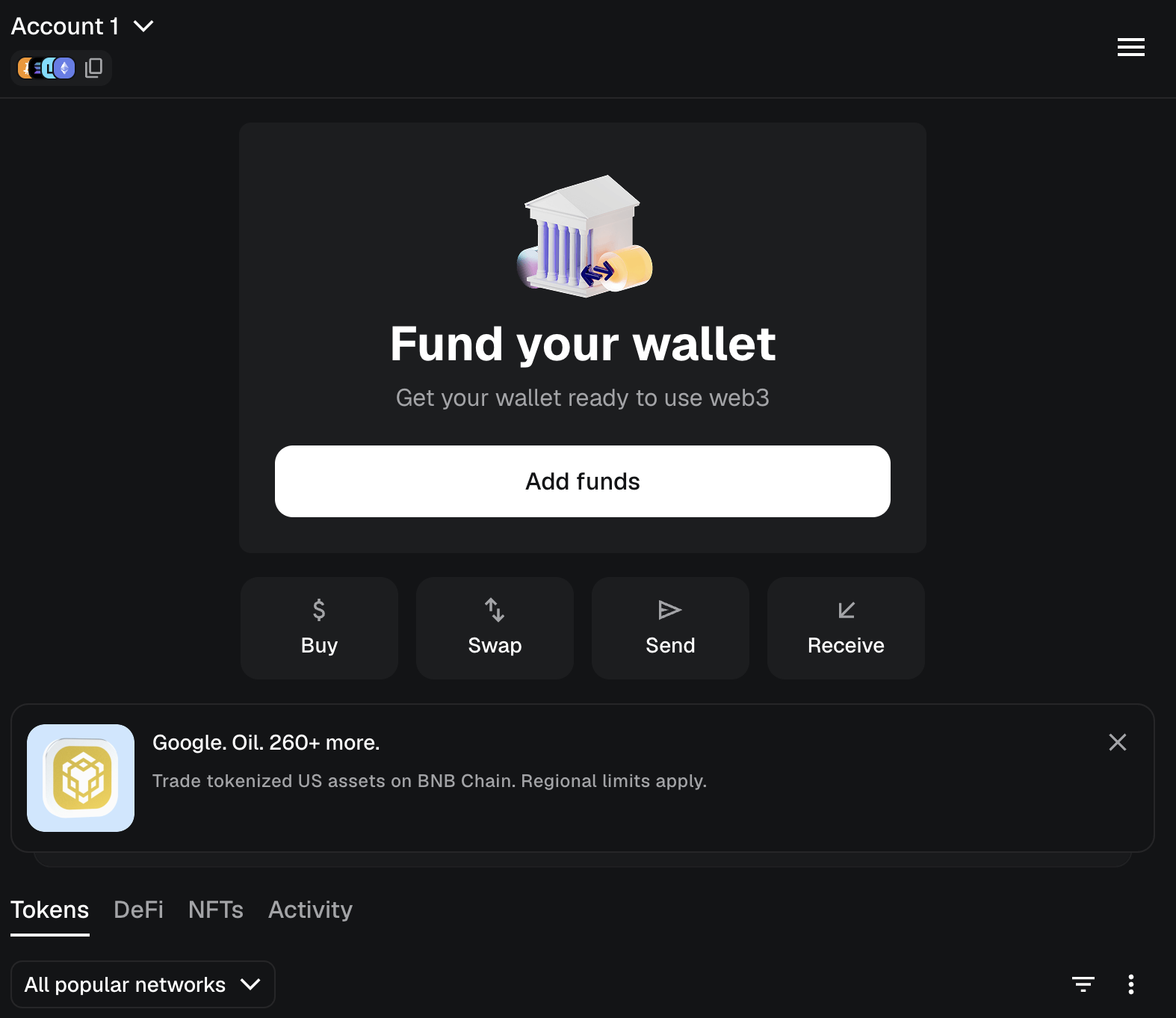
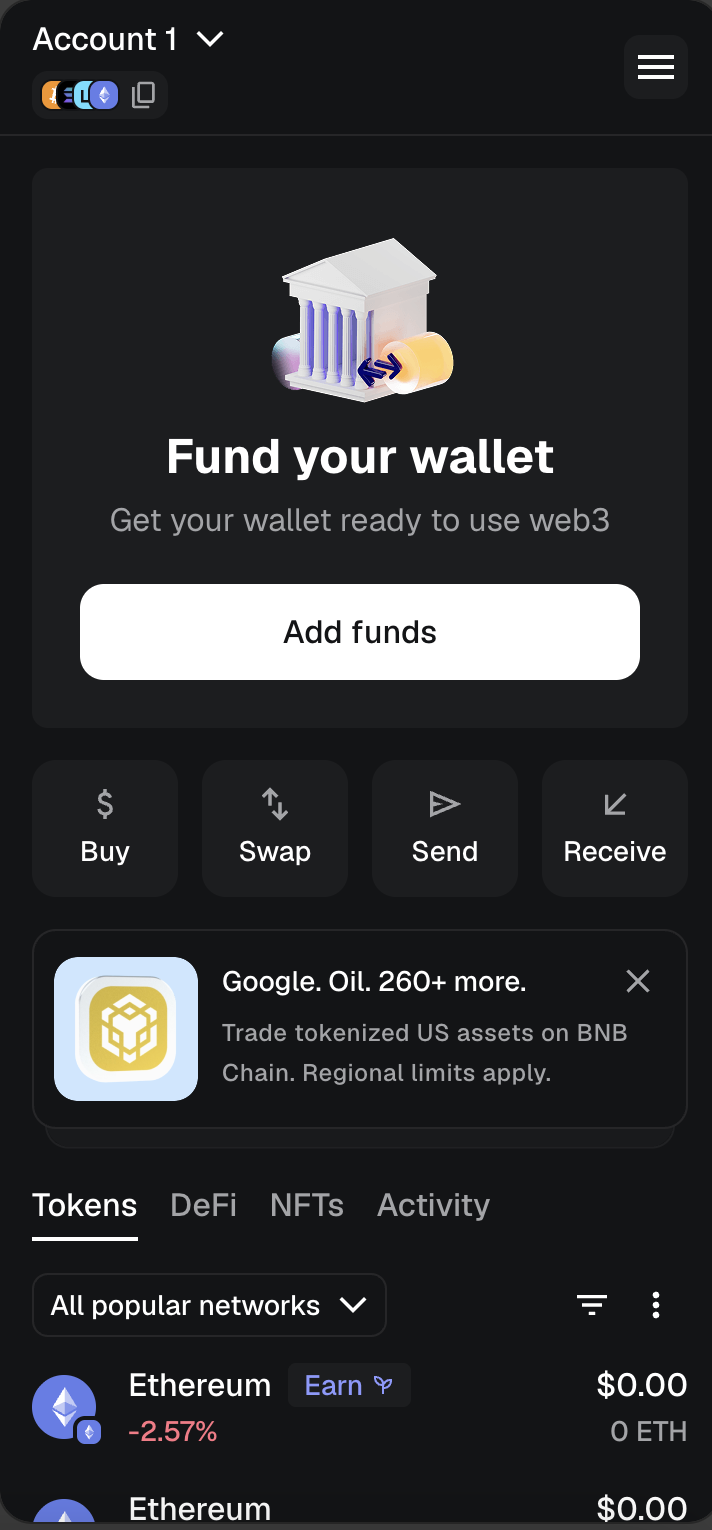
Look for the network dropdown in MetaMask. You'll see a list of "Popular" networks. Sepolia is not there.
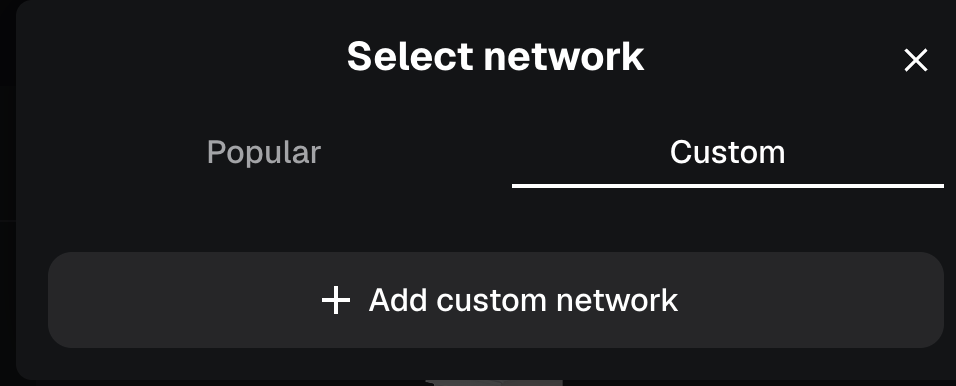
Click the "Custom" tab at the top of the network selector.
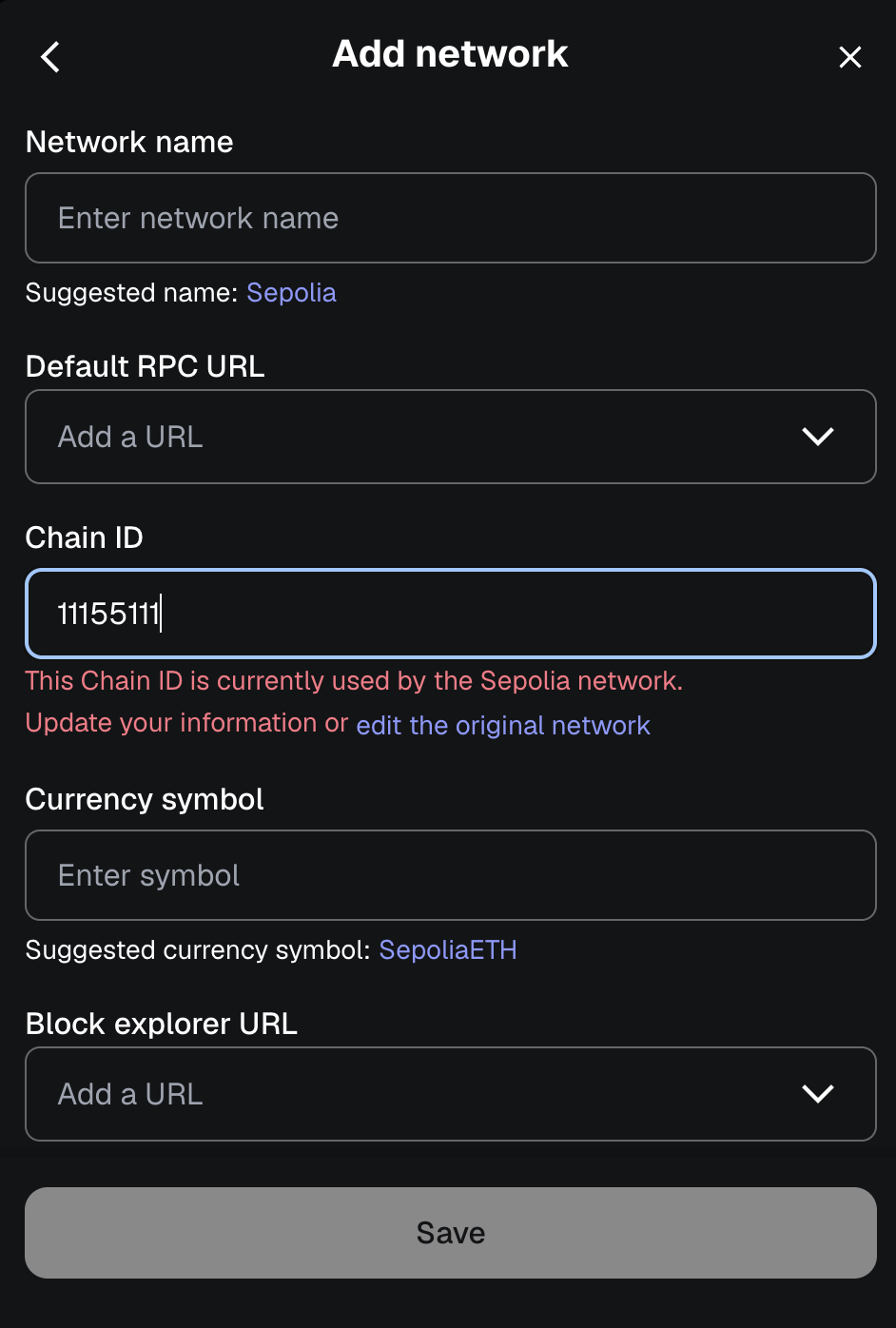
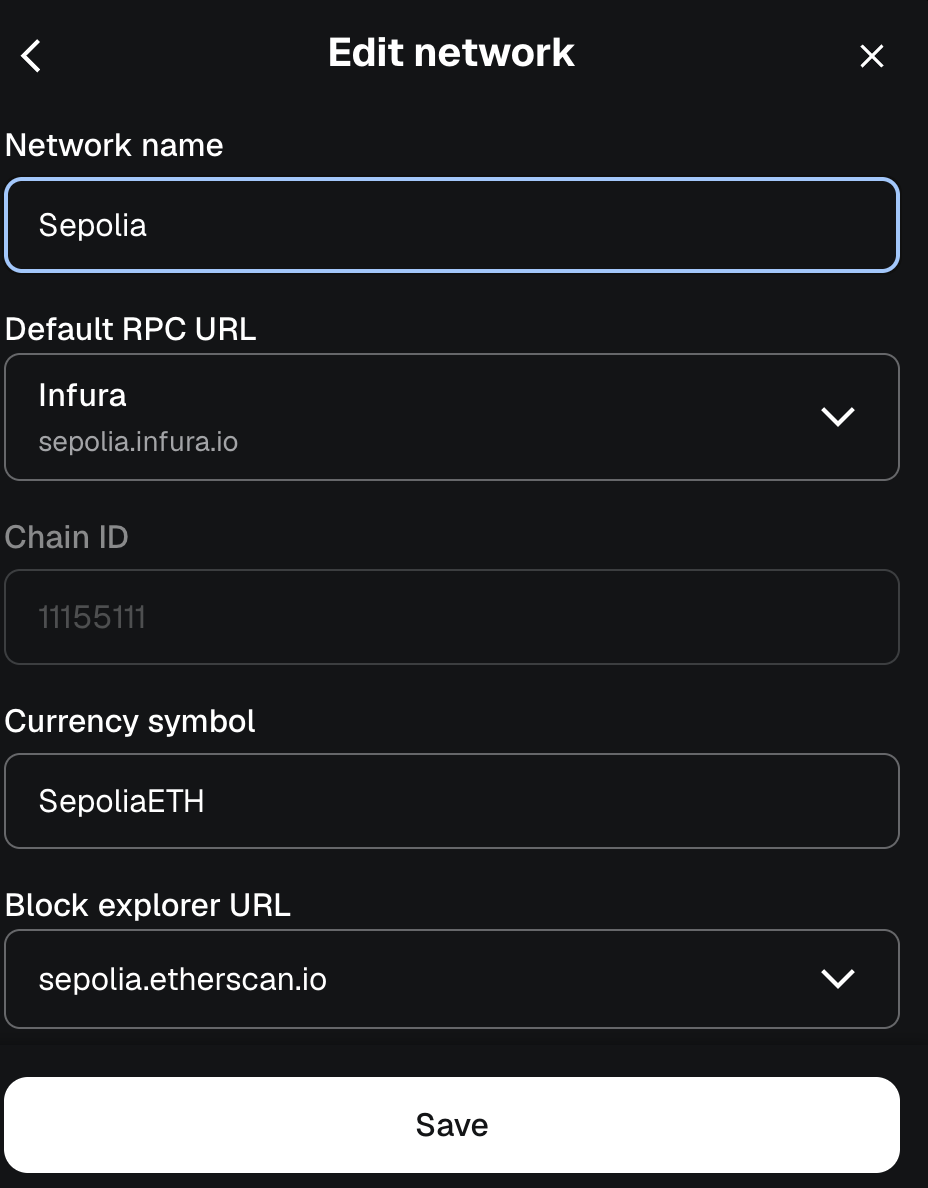
Click "+ Add custom network." In the form, type the Chain ID: 11155111. MetaMask recognizes this as Sepolia and shows: "This Chain ID is currently used by the Sepolia network." Click the "edit the original network" link.
All fields auto-populate with Sepolia's configuration. Click Save.
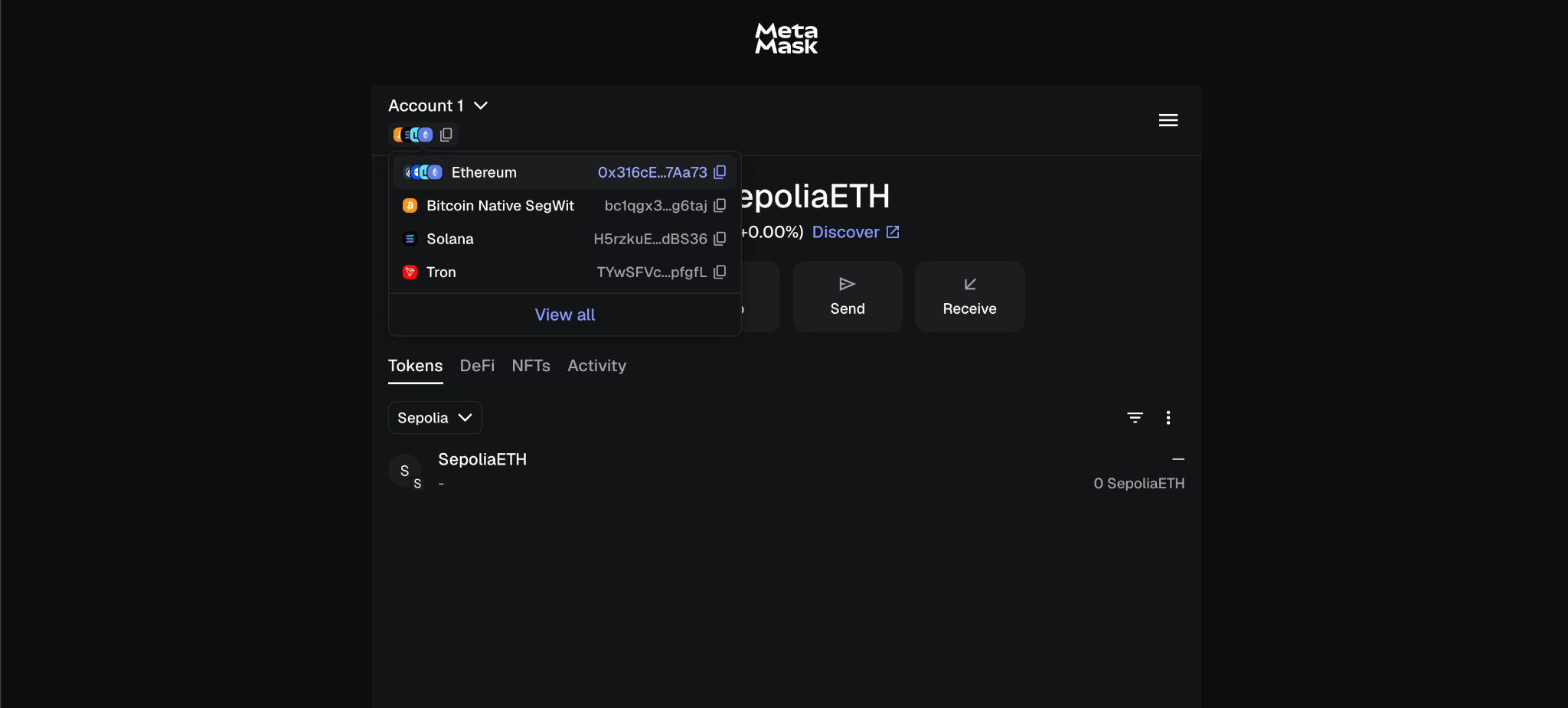
Now select Sepolia from the network list. MetaMask shows "0 SepoliaETH."
Troubleshooting: Sepolia not showing in MetaMask network list
Go to the network selector, click Custom, then "+ Add custom network." Enter Chain ID 11155111. MetaMask recognizes Sepolia and shows "edit the original network." Click that, then Save. Sepolia appears in your network list.
Step 4: Copy Your Wallet Address
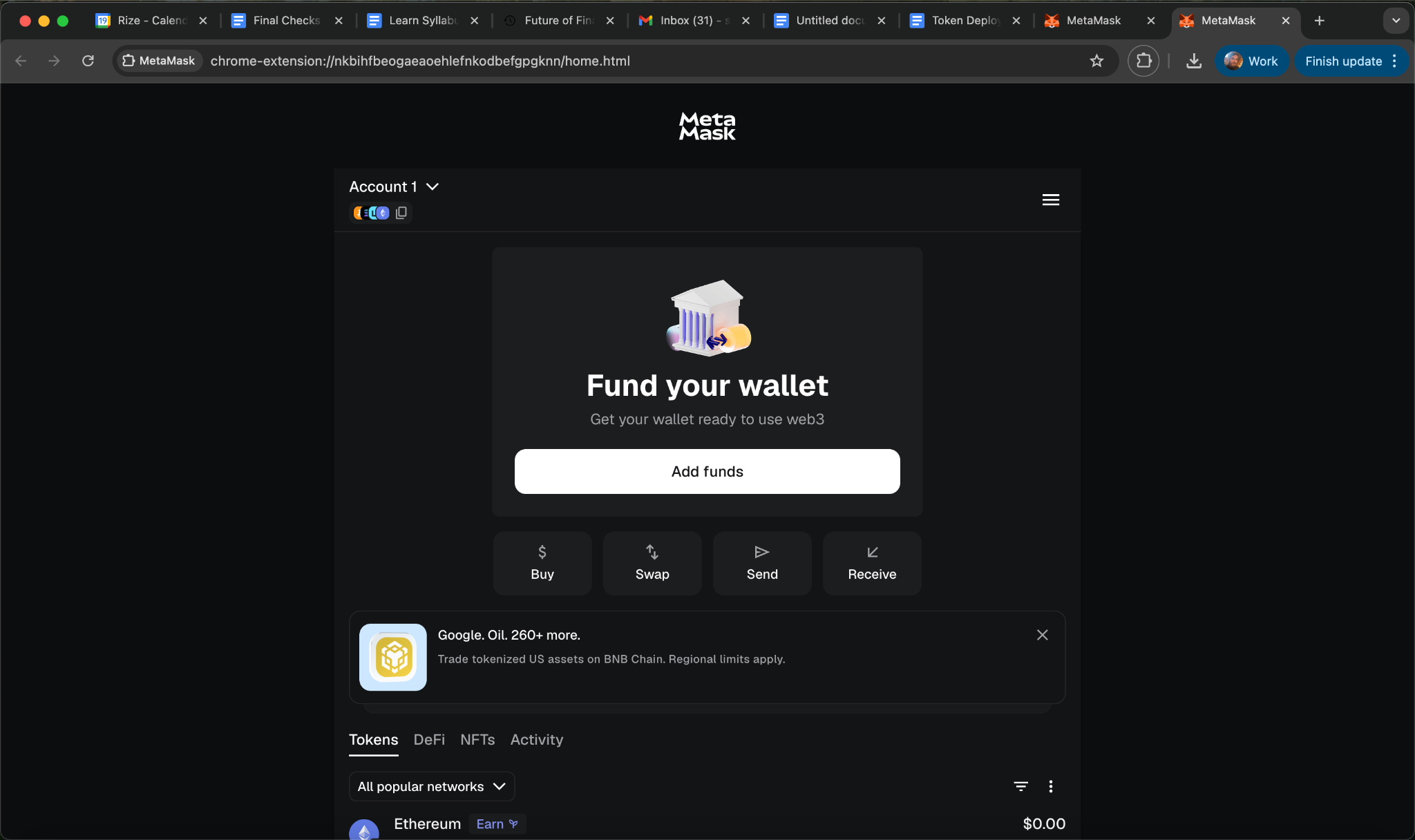
Under "Account 1," you'll see small colored circles and a copy icon. Click them to reveal your addresses across networks.
Your address looks like 0x316cEa4e...7Aa73. Copy the Ethereum address and save it somewhere accessible. You will paste it several times.
Your wallet address is public, like an email address. Share it freely. The things you never share are your password and your 12-word recovery phrase.
Checkpoint: MetaMask installed, Sepolia network selected, wallet address copied and saved.
Phase 2 Get Free Test ETH ~5 min
Every blockchain transaction costs a small fee called "gas" to compensate the network for processing it. Even deploying code costs gas. On Ethereum mainnet, gas fees are paid in real ETH. The Sepolia testnet gives you free ETH so you can experiment, make mistakes, and redeploy as many times as you need without spending anything.
Step 5: Request Test ETH from a Faucet
Try these in order. You only need one to work:
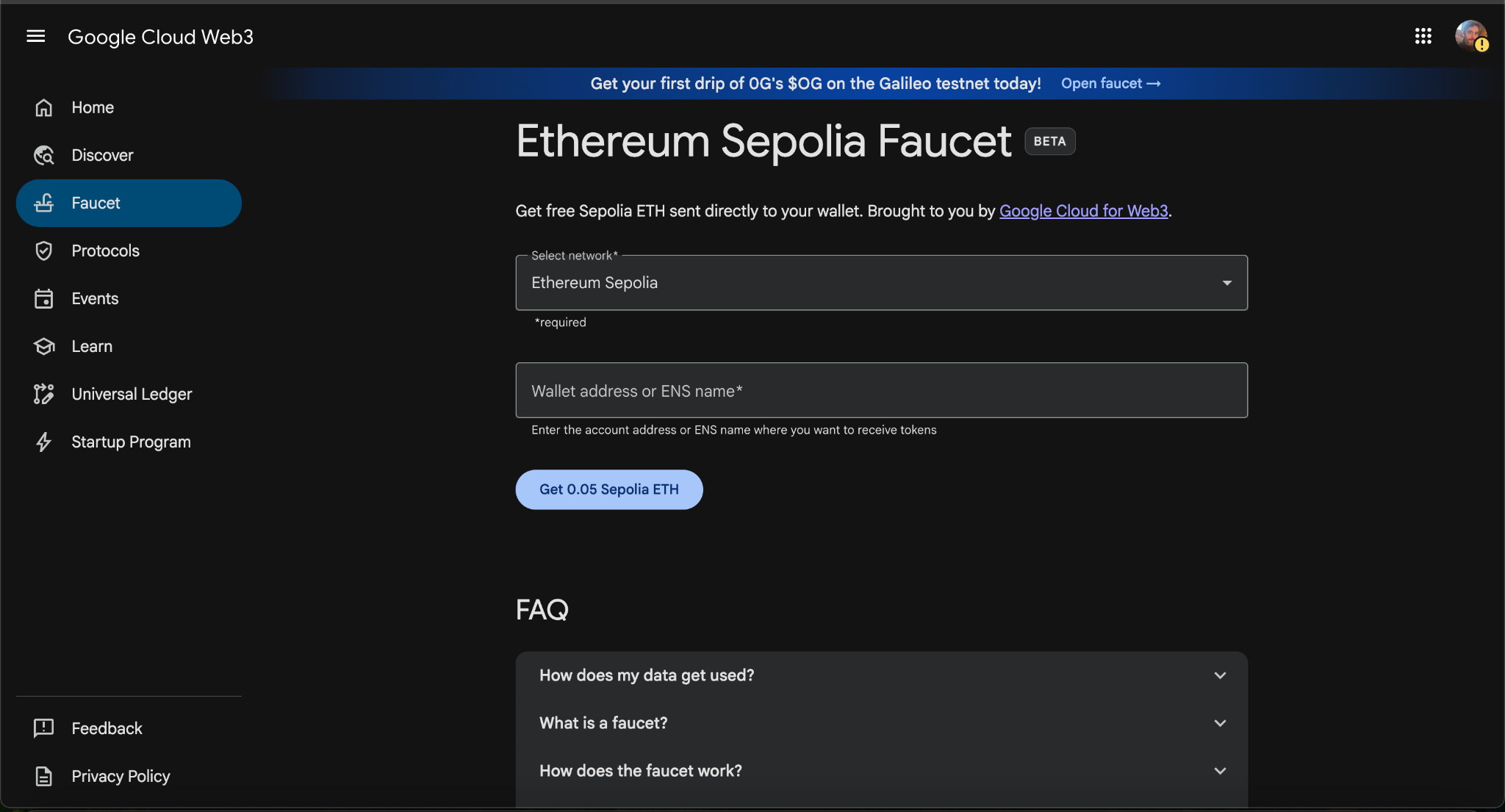
- Google Cloud Faucet (easiest): Go to cloud.google.com/application/web3/faucet/ethereum/sepolia. Log in with Google. Paste your wallet address. Click "Receive." ~0.05 ETH arrives in about 30 seconds.
- Chainlink Faucet: faucets.chain.link/sepolia. Connect MetaMask, complete the captcha. 0.1 ETH.
- QuickNode Faucet: faucet.quicknode.com/ethereum/sepolia. Paste address, click drip.
If none work (faucets occasionally go down), search "Sepolia faucet" and try whatever comes up. You need at least 0.01 ETH.
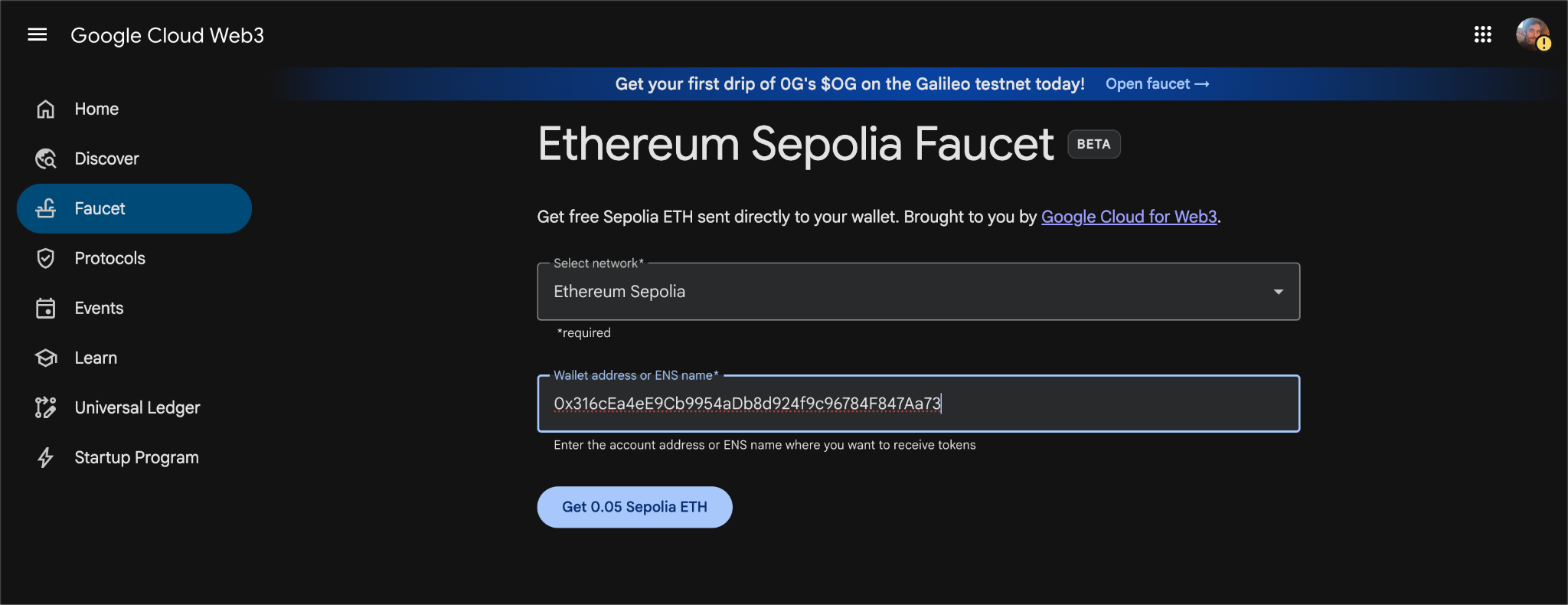
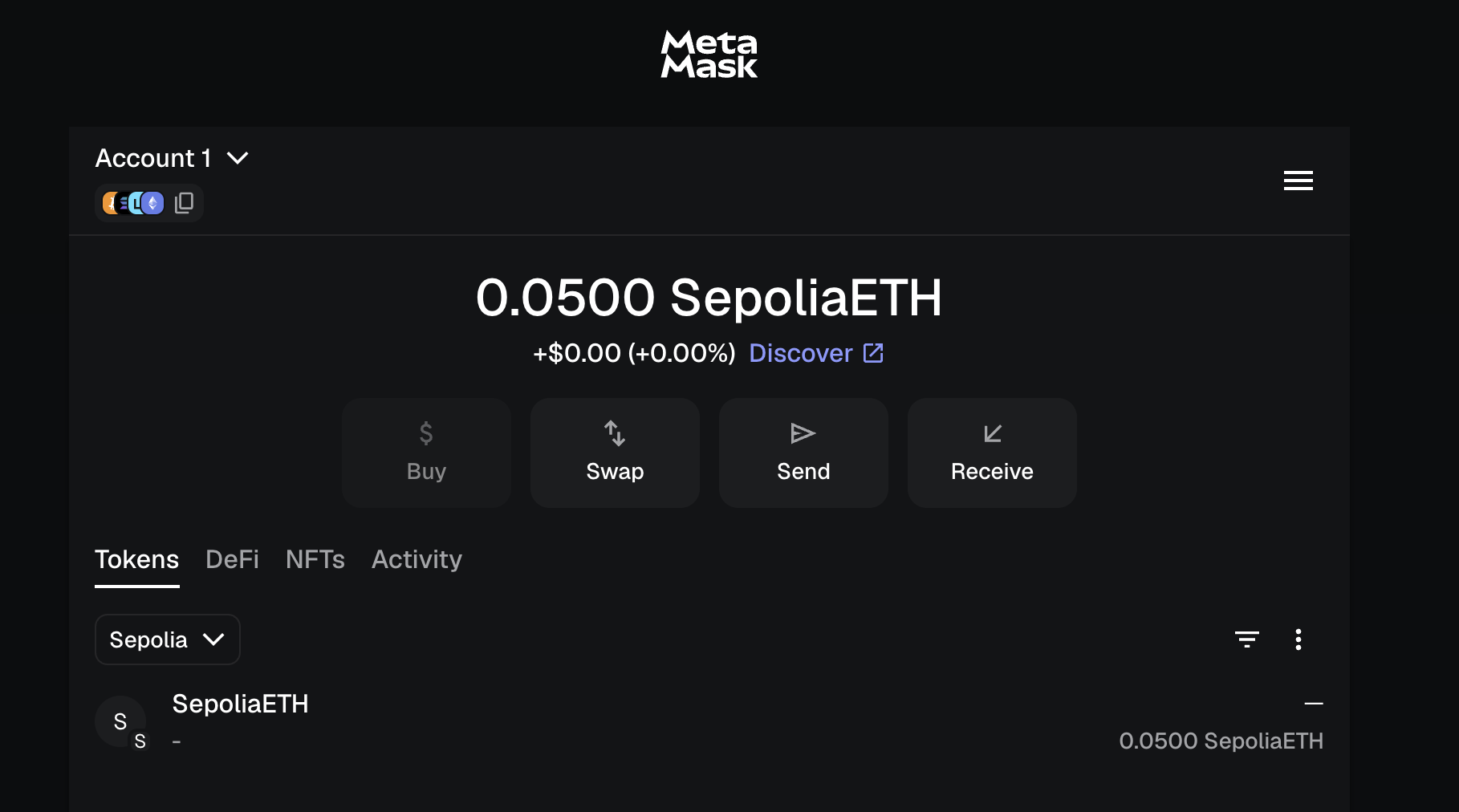
Checkpoint: MetaMask shows a SepoliaETH balance greater than 0. Any amount above 0.01 is enough.
Phase 3 Generate Your Token Code ~10 min
Smart contracts are programs that run on the blockchain. Your token IS a smart contract -- a set of rules governing who can hold it, how many exist, and how they move between wallets. You do not write this code yourself. OpenZeppelin Wizard generates production-quality Solidity code from checkboxes. OpenZeppelin is the industry-standard library used by real companies. You configure what your token does; the Wizard writes the smart contract.
Step 6: Configure Your Token
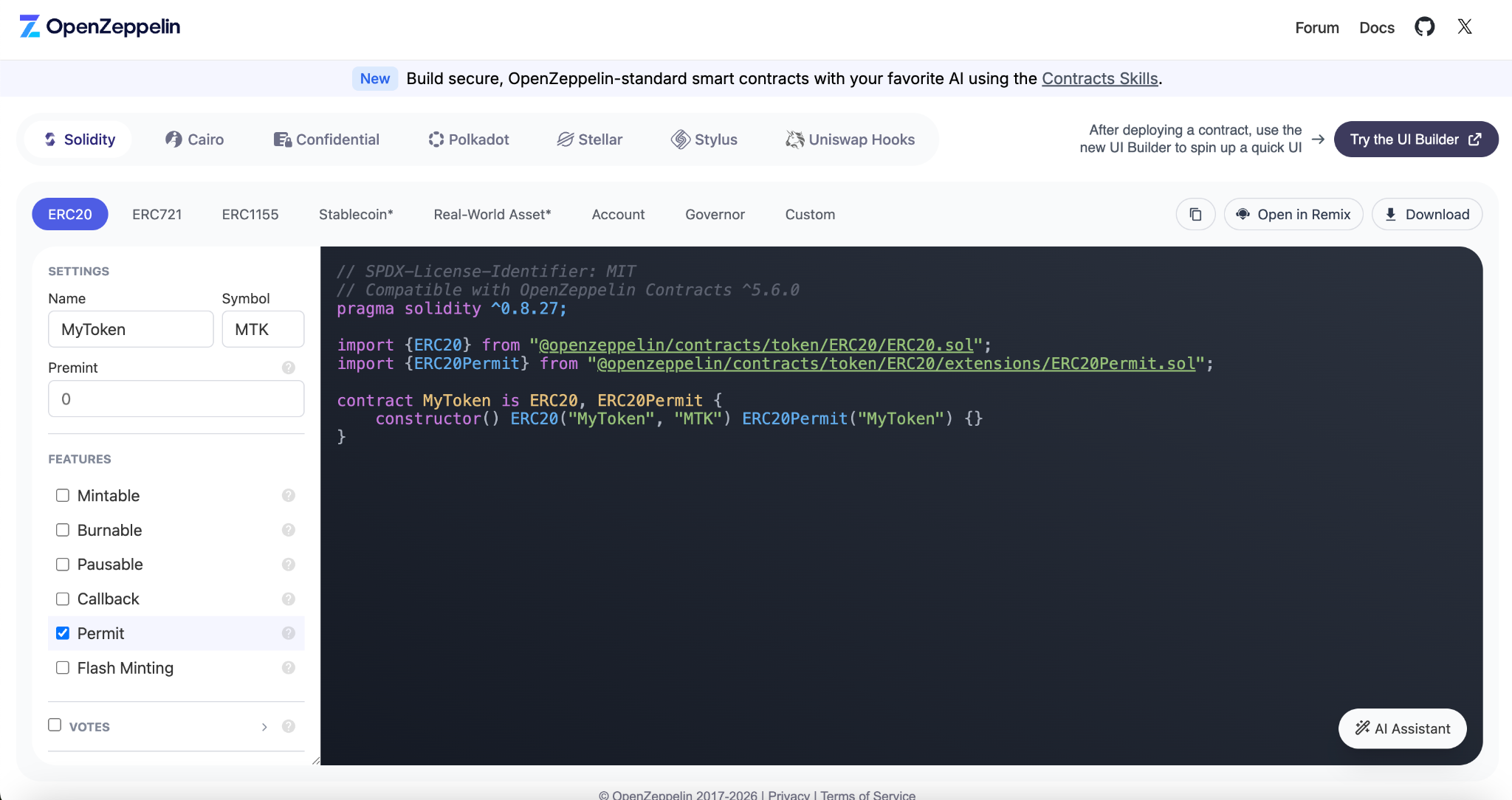
Go to wizard.openzeppelin.com. Click the ERC20 tab at the top.
Fill in:
- Name: Your token's display name (appears on Etherscan and in wallets)
- Symbol: 3-5 uppercase letters, like a stock ticker
- Premint: Initial token supply. Use a round number like
1000000
Step 7: Choose Features
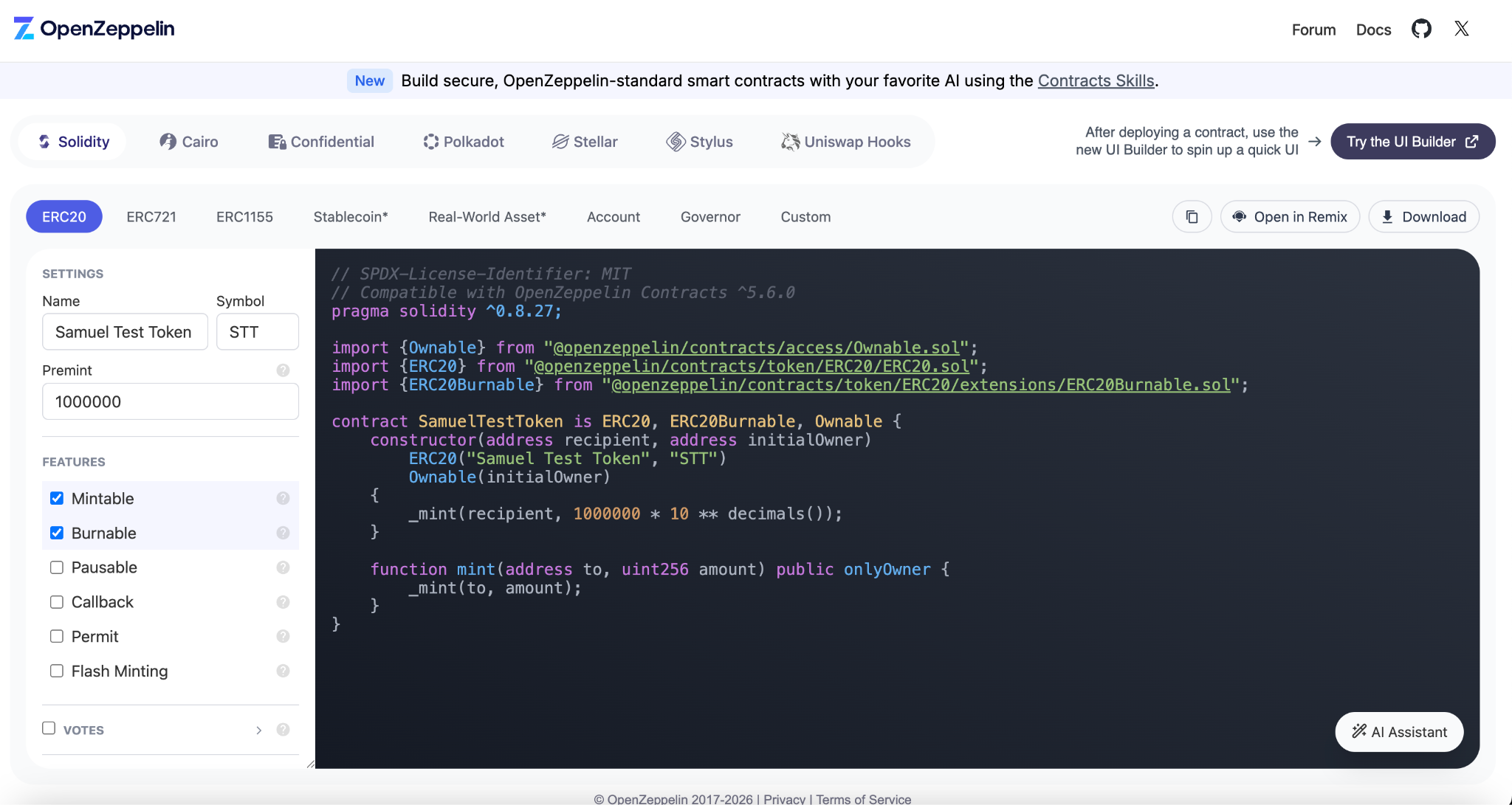
Under "Features," check:
- Mintable: Lets the token owner create more tokens later
- Burnable: Lets holders permanently destroy tokens
Leave everything else unchecked. The code on the right updates live as you click.
Can I customize beyond these checkboxes?
Yes. The Wizard produces standard, audited code, but you can edit it freely in Remix (the next tool). If your token economics require custom logic (vesting schedules, dynamic fees, governance mechanisms), you can modify the Solidity directly or ask an LLM to help. Example prompt:
"I want my ERC-20 token to charge a 1% fee on transfers that goes to a treasury address. Here is my current code from OpenZeppelin Wizard. How do I modify it?"
For this course, the standard Wizard features are sufficient. The intellectual work is in your white paper's argument for why you chose these parameters.
Step 8: Send Code to Remix
Click "Open in Remix" at the top of the code panel. A new tab opens with Remix IDE and your code loaded.
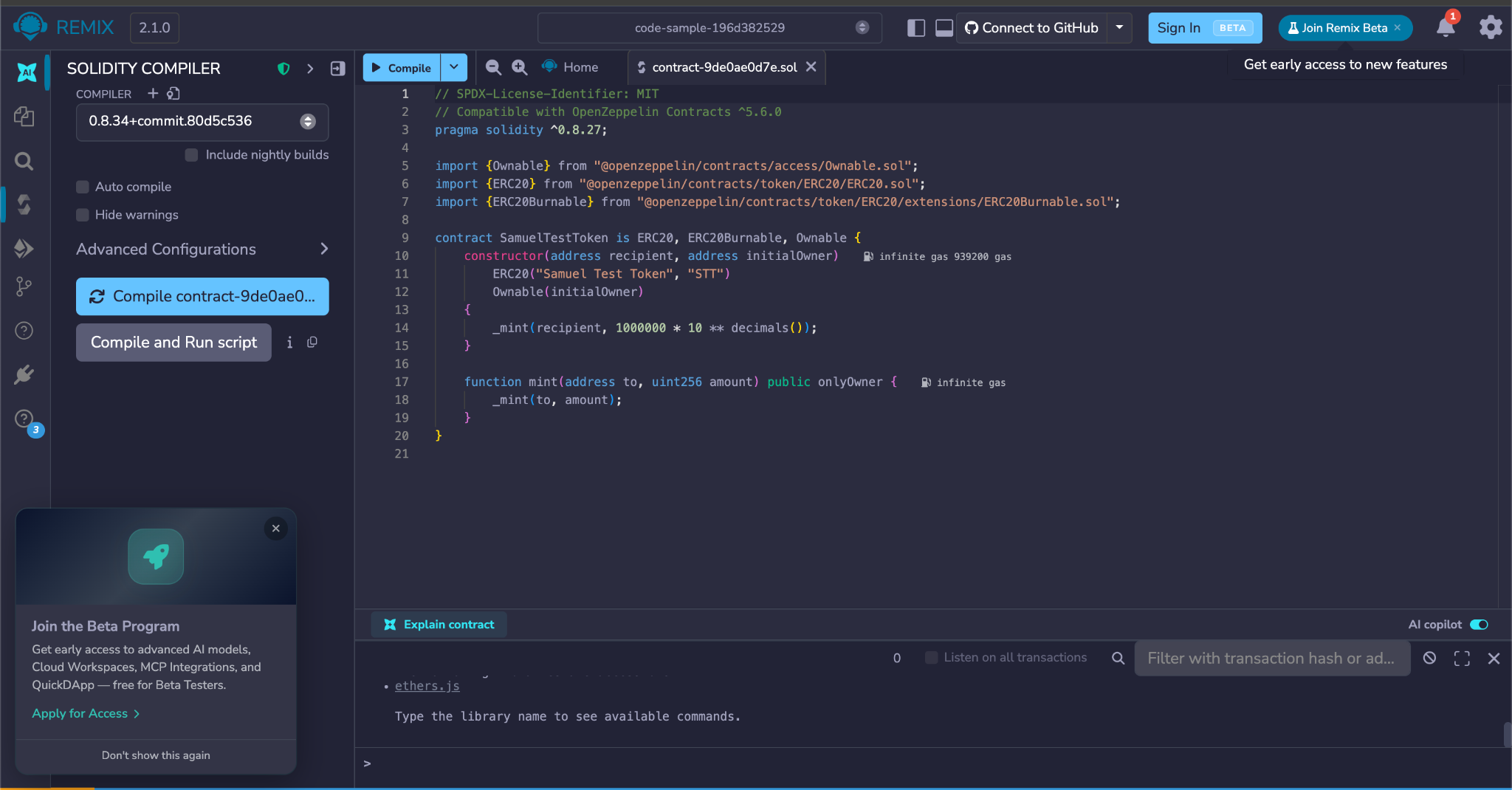
Checkpoint: Remix is open with your .sol file. You have not changed anything.
Phase 4 Compile and Deploy ~15 min
Compiling checks your code for errors and converts it into something the blockchain can execute. Deploying uploads that compiled code to Sepolia, where it becomes permanent and public. Once deployed, the rules you set are locked in -- the supply cap, the mint permissions, everything. On a testnet this does not matter (you can redeploy freely), but on mainnet it is irreversible. This is where your token goes from an idea to a real on-chain asset.
Step 9: Compile
In Remix's left sidebar, click the Solidity Compiler icon (an "S" shape). Click the blue "Compile contract..." button.
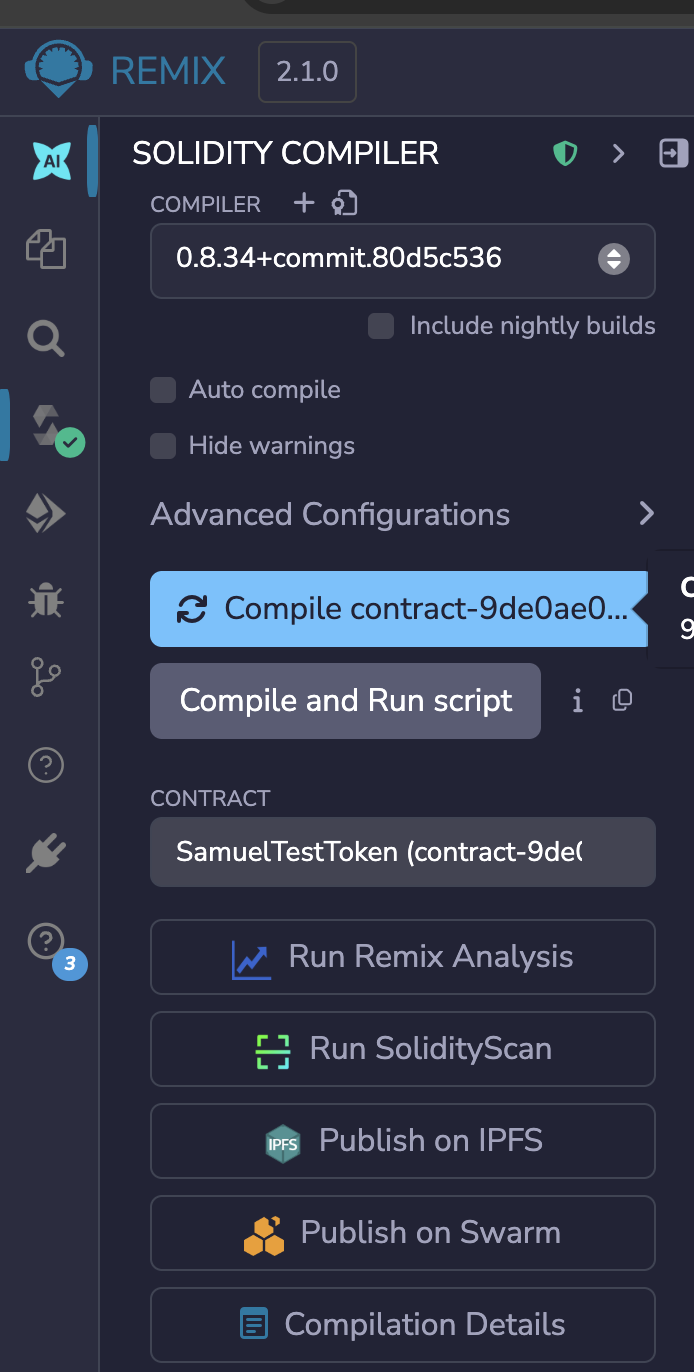
A green checkmark appears, confirming success.
Troubleshooting: Compilation errors (red text in Remix)
The most common cause is the Solidity compiler version being too old. Change the version dropdown to 0.8.20 or higher. Click Compile again.
Step 10: Connect MetaMask to Remix
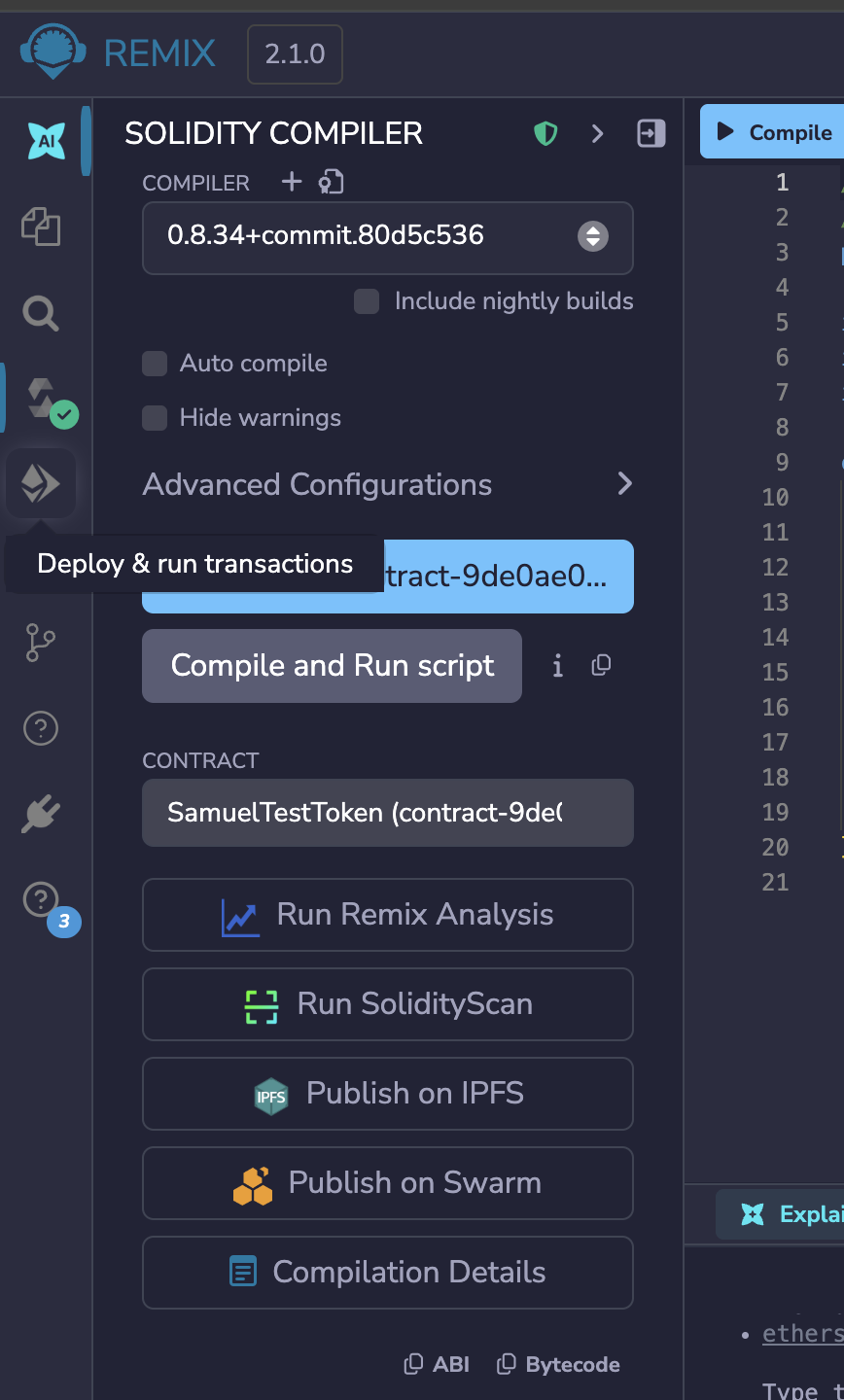
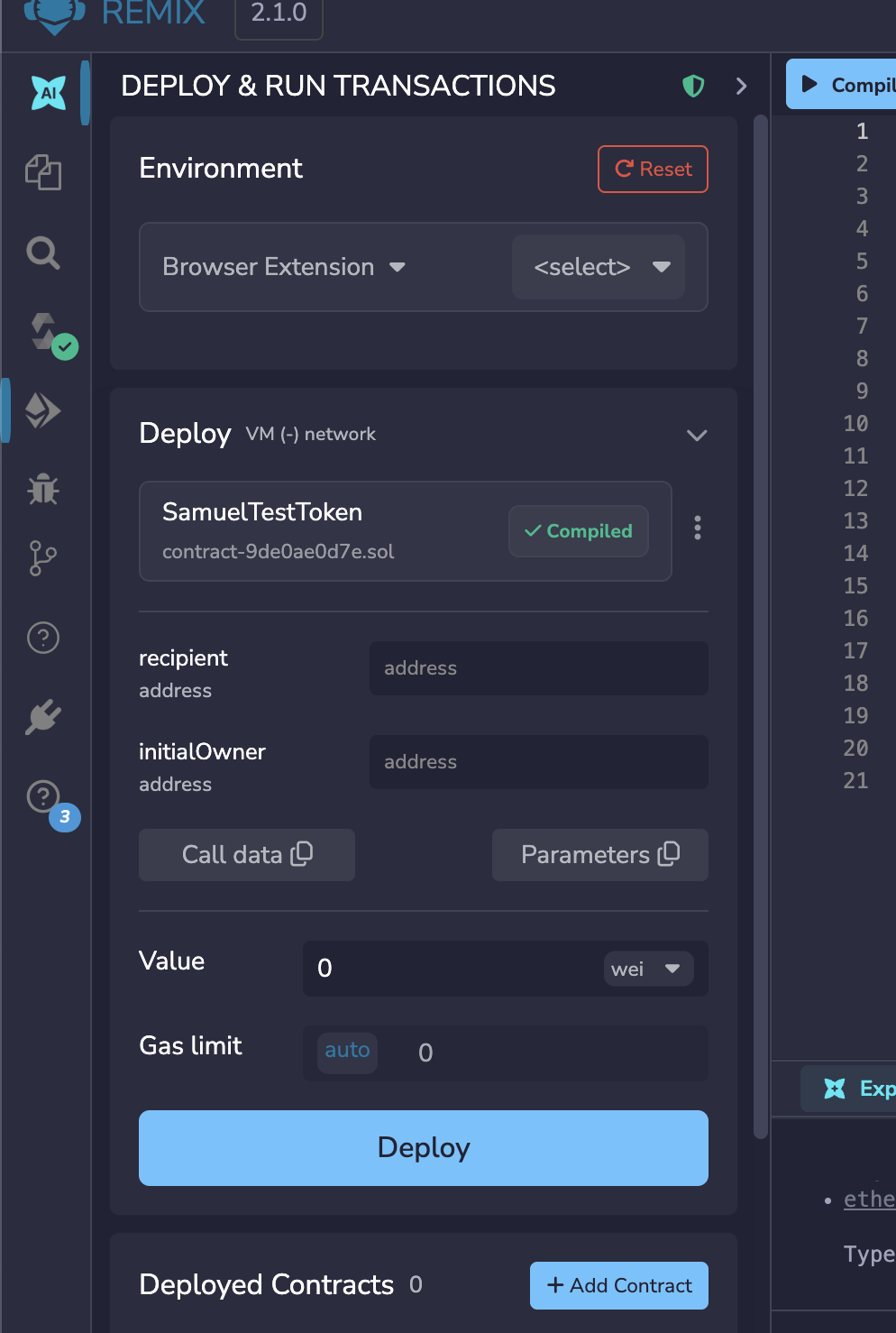
Click the Deploy & Run Transactions icon in the sidebar (Ethereum diamond shape). In the Environment dropdown, select "Browser Extension."
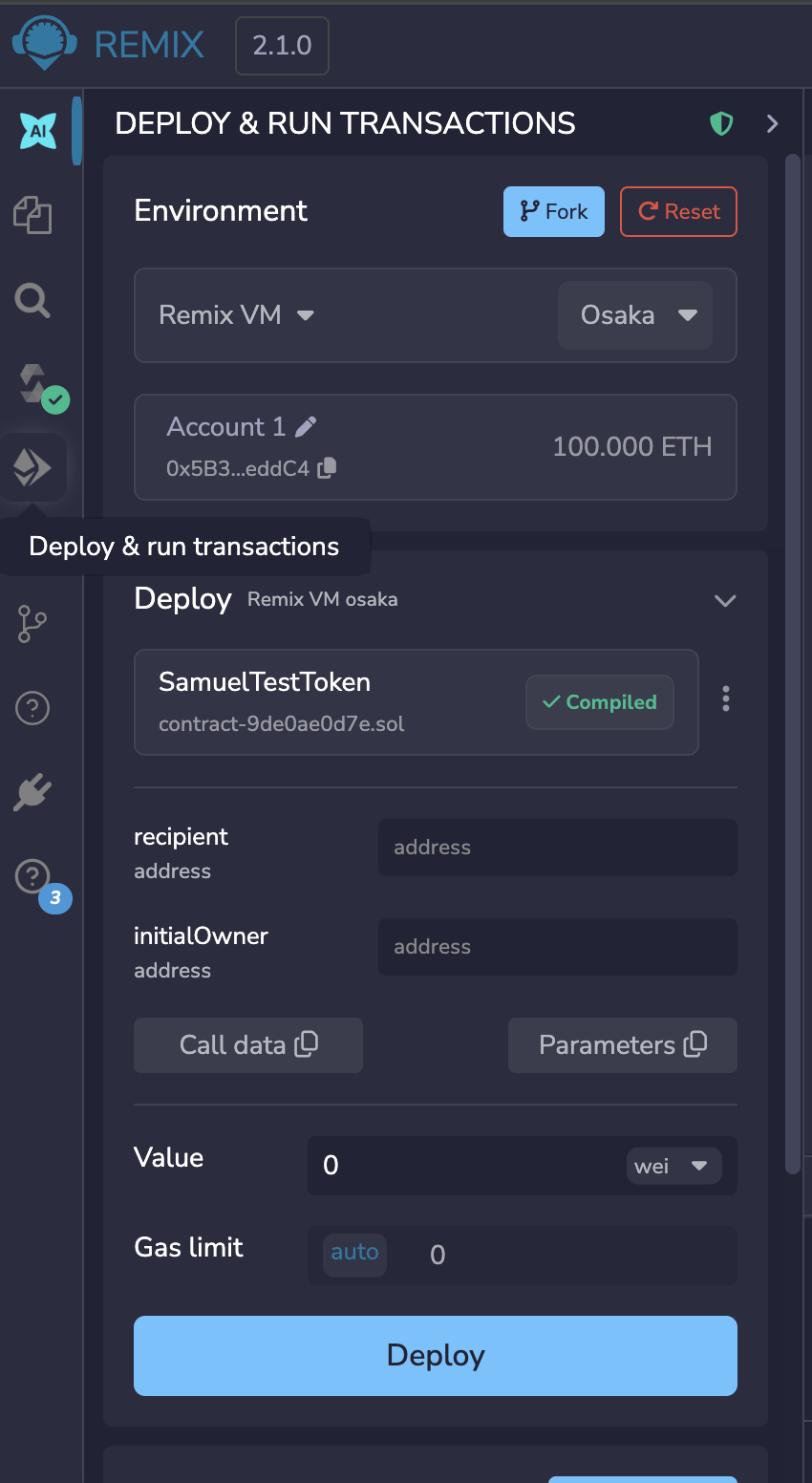
A second dropdown appears. Select "MetaMask."
MetaMask pops up asking to connect to remix.ethereum.org. Click Connect.
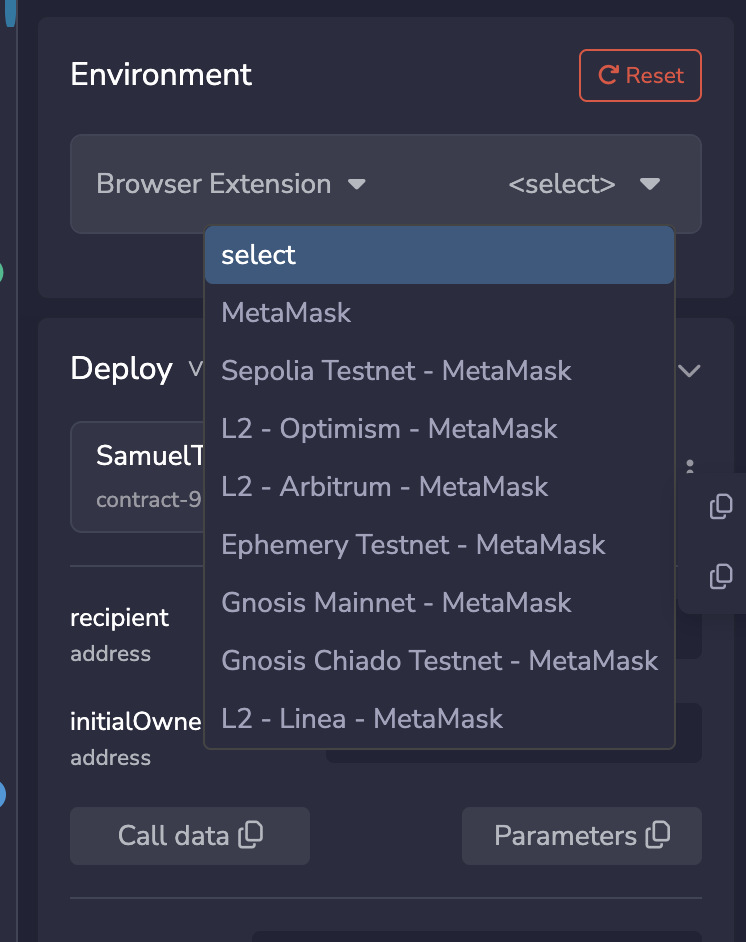
Verify the Deploy panel shows your wallet address, your SepoliaETH balance, and Sepolia (11155111) network.
If it says "Ethereum Mainnet" instead of Sepolia, stop. Switch MetaMask to Sepolia first. Deploying on mainnet costs real money.
Troubleshooting: MetaMask popup does not appear when connecting to Remix
Click the fox icon in your toolbar to open MetaMask manually. Make sure it is unlocked. If you have other wallet extensions (Coinbase Wallet, Phantom), disable them temporarily. Then reselect "Browser Extension" and "MetaMask" in Remix.
Step 11: Deploy Your Token
In the Deploy panel, paste your wallet address into both fields:
- recipient: who receives the initial tokens (you)
- initialOwner: who can mint more later (also you)
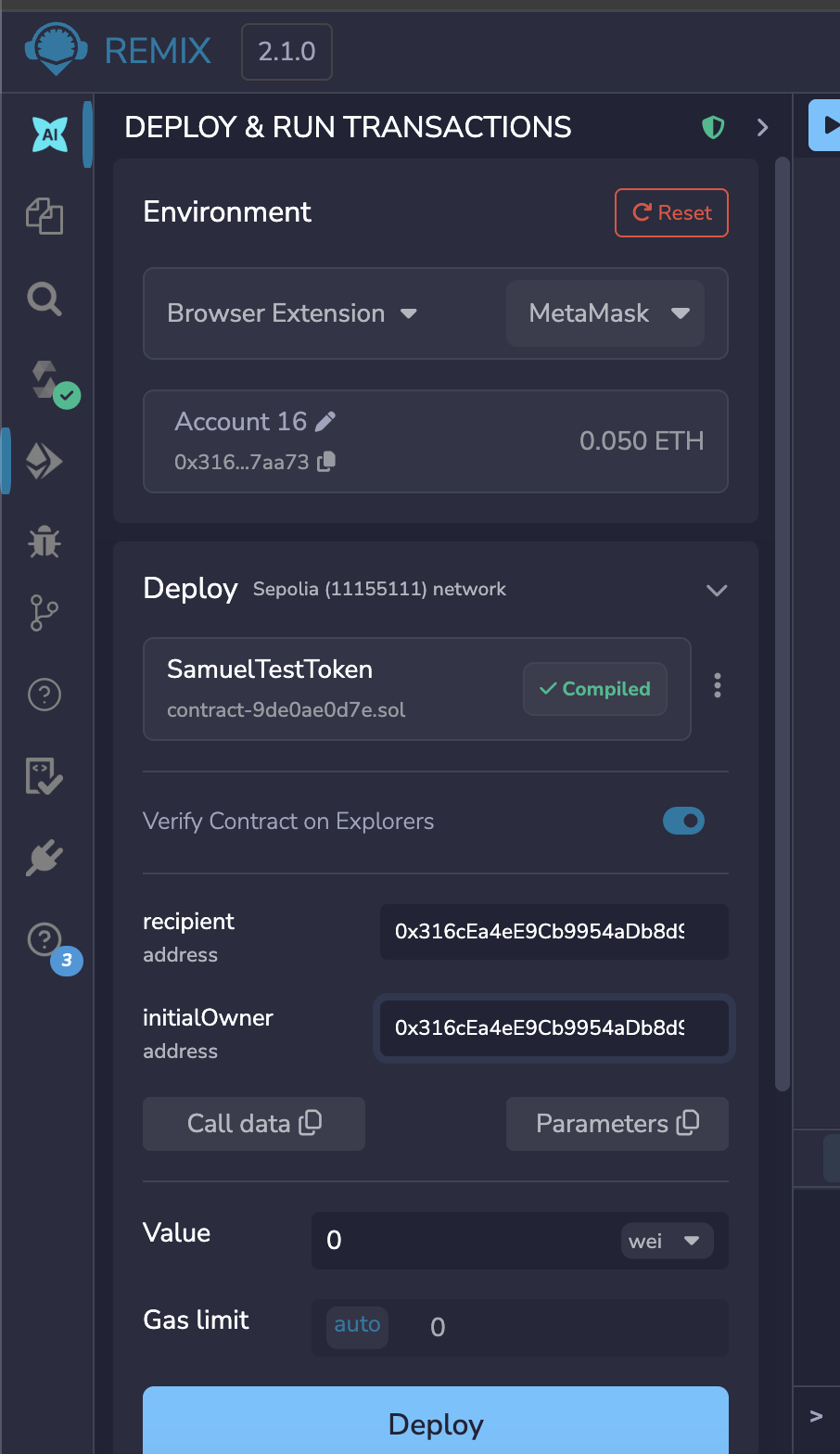
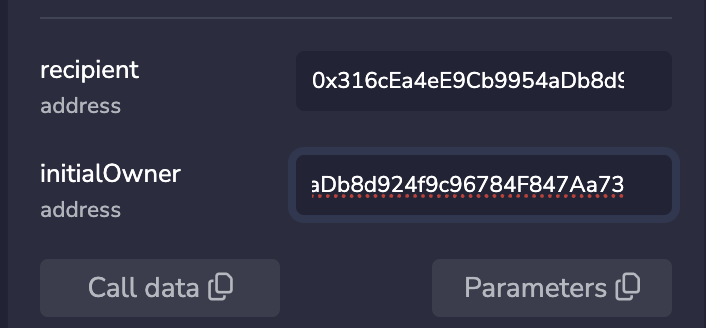
Click the blue Deploy button. MetaMask pops up showing the gas fee. Click Confirm.
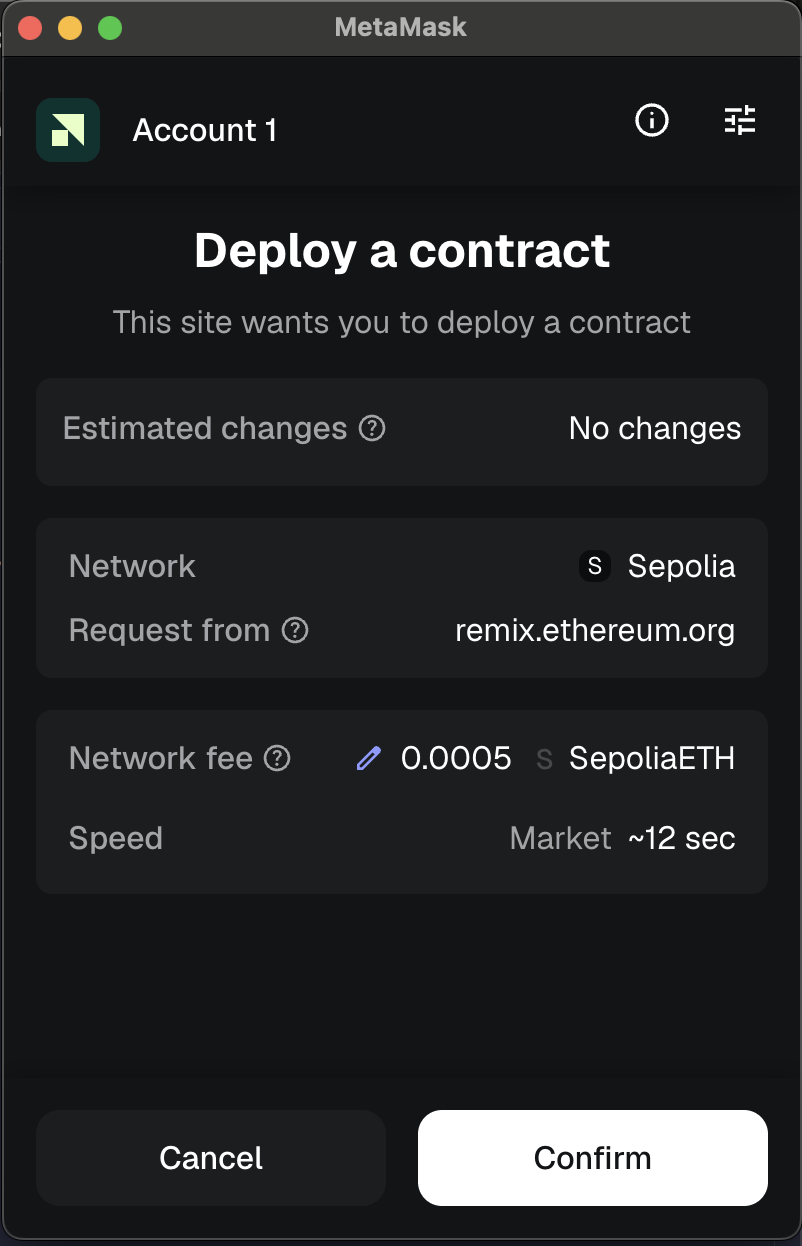
Wait 15-30 seconds. A green checkmark appears in the Remix terminal.
Troubleshooting: "Gas estimation errored" when deploying
Both the recipient and initialOwner fields must contain valid Ethereum addresses starting with 0x. Confirm your SepoliaETH balance is above 0.01. If the error persists, check that the Solidity compiler version is 0.8.20 or higher.
Troubleshooting: Transaction stuck for more than 2 minutes
Wait up to 5 minutes. If still pending: MetaMask, then Settings, then Advanced, then "Clear activity tab data." Redeploy. On a testnet, redeploying is free.
Step 12: Copy Your Contract Address
Scroll down to "Deployed Contracts." Your token appears with an address. Click the copy icon.
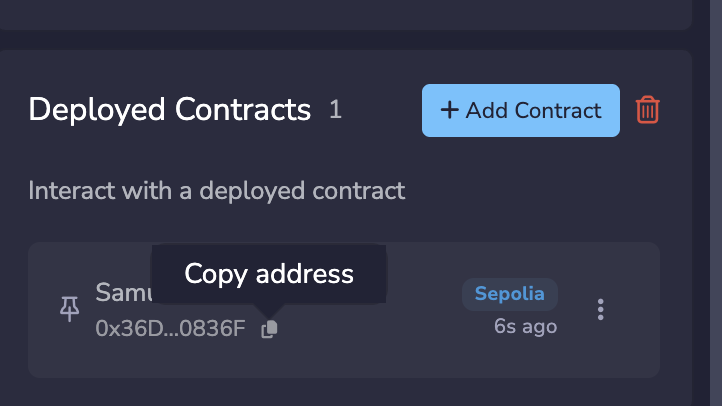
Save this address. You will include it in your white paper's Deployment Documentation section.
Checkpoint: Contract deployed. Contract address copied. The hard part is done.
Phase 5 Verify It Worked ~10 min
Etherscan is a public record of everything on the blockchain. When you look up your contract, you are seeing the same data that every other person on the network sees -- your token's name, supply, creator address, and every transaction it has ever been part of. This transparency is what makes blockchain useful for the problems you studied in this course: when the ledger is public and immutable, trust becomes verifiable instead of assumed.
Step 13: View Your Token on Etherscan
Go to sepolia.etherscan.io. Paste your contract address in the search bar.
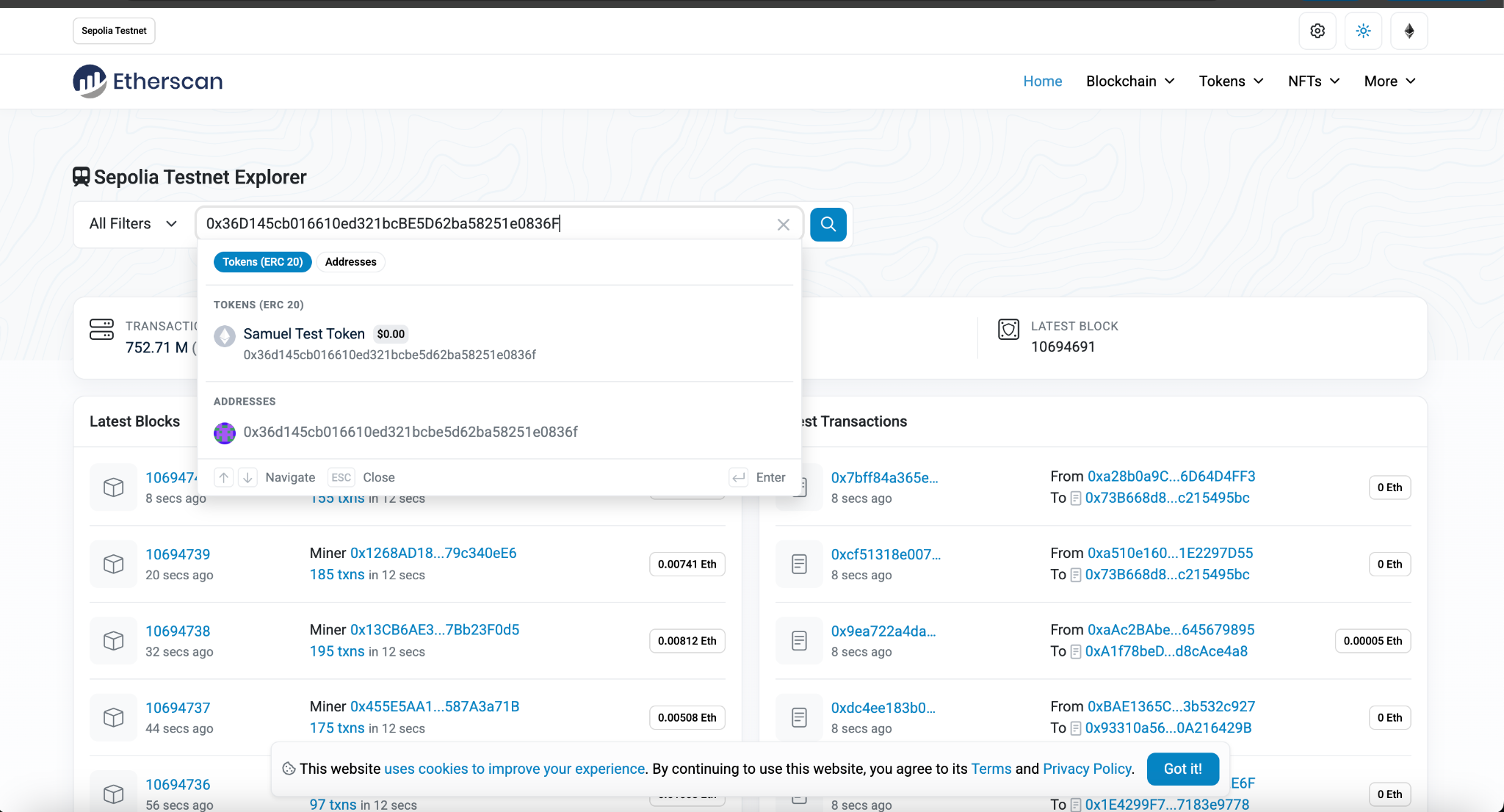
For your white paper: Save a screenshot of this page and copy the Etherscan URL. Both go in your Deployment Documentation section.
Step 14: See Your Tokens in MetaMask
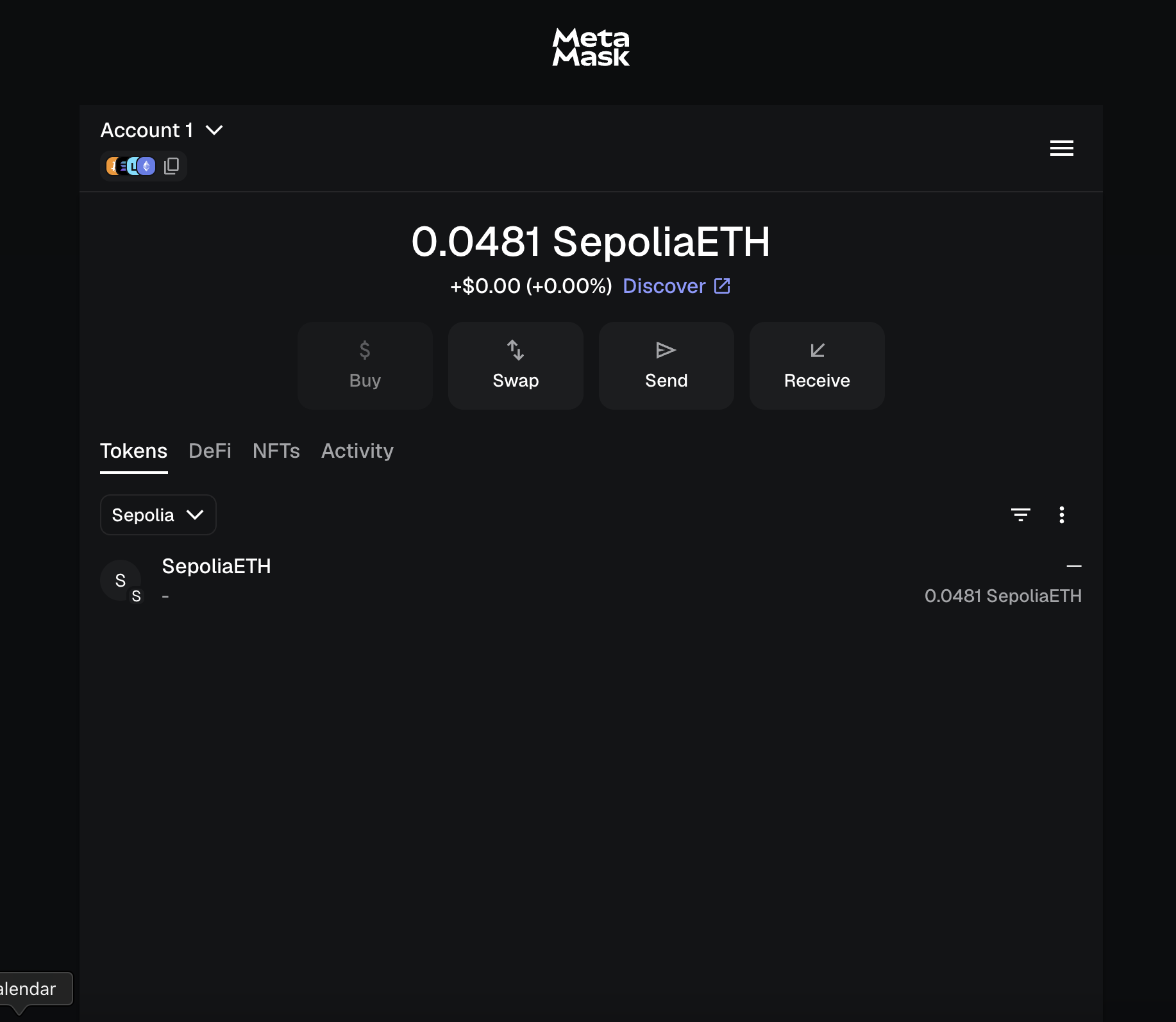
MetaMask does not automatically show new tokens. You need to import yours. In MetaMask, click the three dots (⋮) next to the filter icon in the Tokens tab, then "Import tokens."
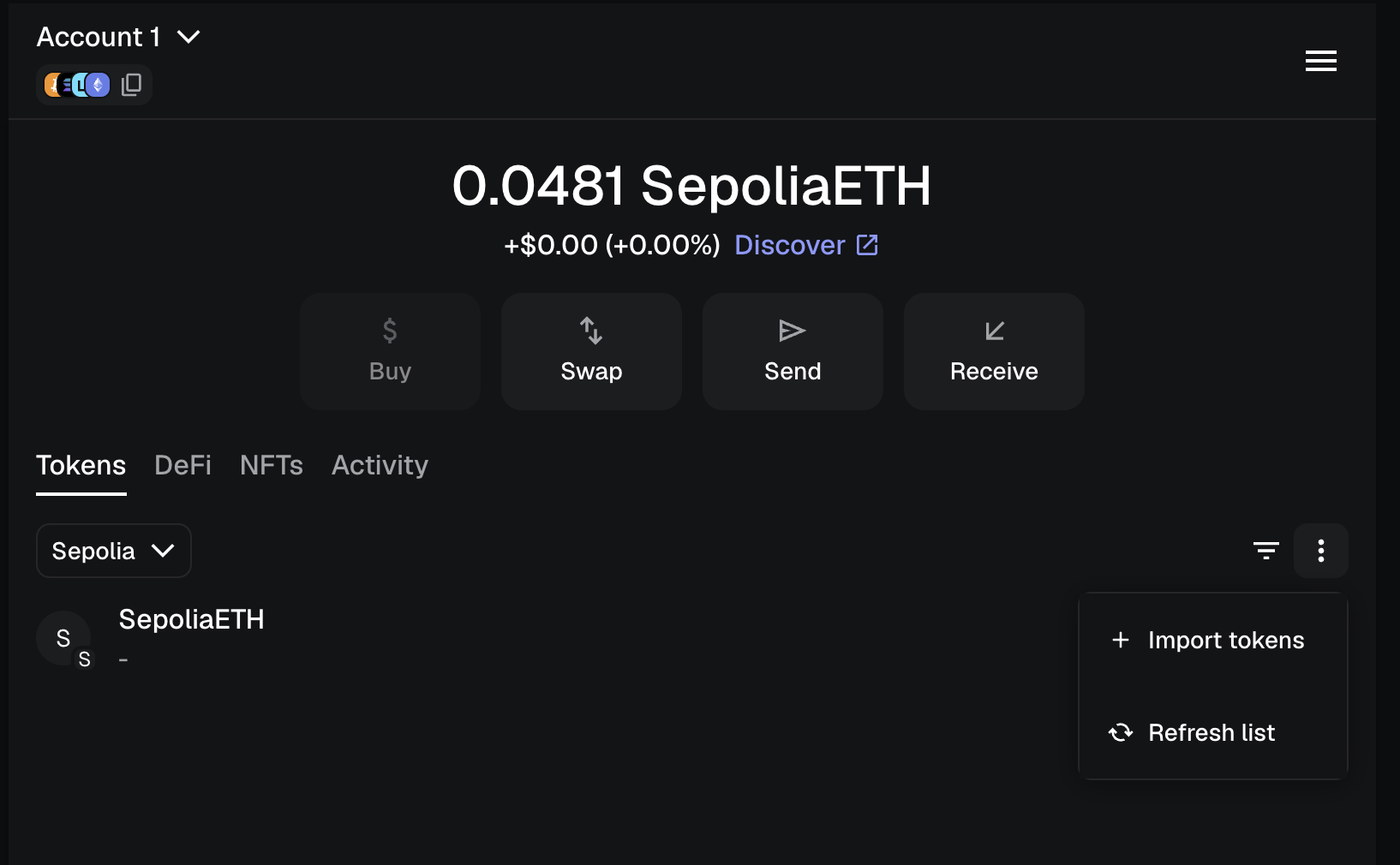
Paste your contract address (not your wallet address). MetaMask auto-fills the symbol and decimals.
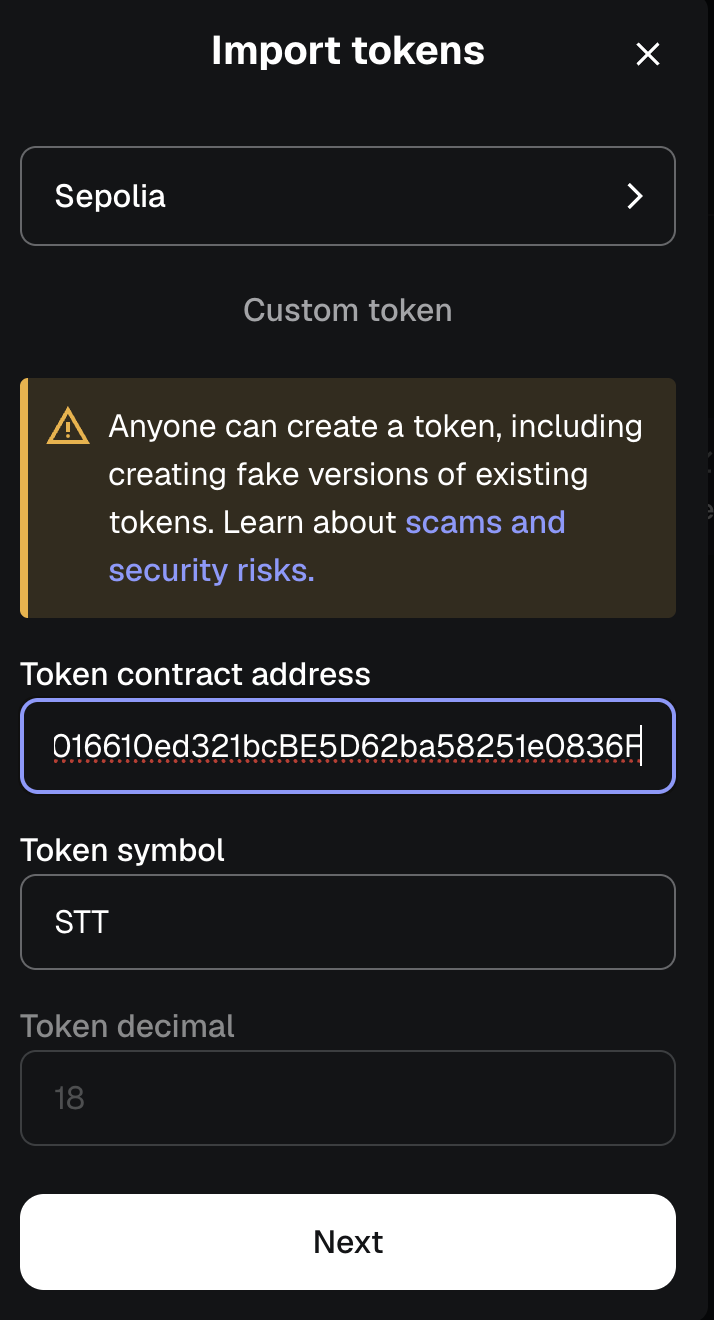
Click Import. Your tokens appear.
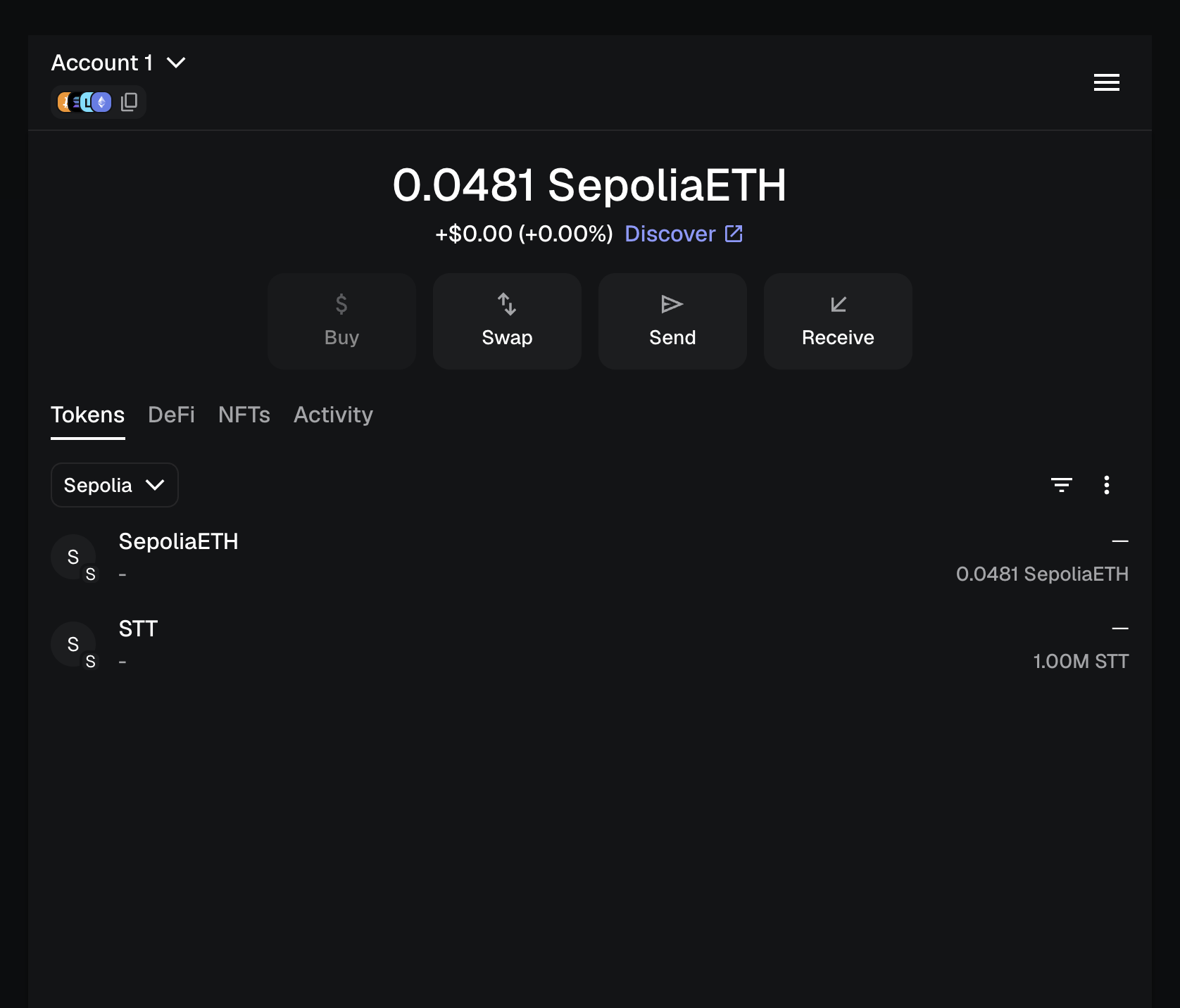
Troubleshooting: Tokens not visible in MetaMask after deployment
MetaMask does not auto-detect new tokens. Click the three dots in the Tokens tab, then "Import tokens," then paste your contract address (not your wallet address).
Checkpoint: Token deployed on Sepolia, visible on Etherscan, tracked in MetaMask. You have a contract address, an Etherscan link, and screenshots for your white paper.
Help General Troubleshooting
I need to start over
Go back to OpenZeppelin Wizard, generate new code, open in Remix, recompile, redeploy. Everything on the testnet is free. Deploy as many times as you need.
Something else went wrong
Use this prompt with your preferred LLM:
"I am a student deploying an ERC-20 token on the Sepolia testnet using MetaMask, OpenZeppelin Wizard (Solidity ^0.8.20), and Remix IDE. I am stuck at [describe the step]. The error says [paste exact error]. I already tried [list what you did]. Can you explain what is wrong in simple terms?"
Optional Deploy on Ethereum Mainnet
You just built a real cryptocurrency. On Sepolia it is practice. On mainnet it is permanent, public, and verifiable by anyone in the world.
Deploying your token on Ethereum mainnet means it gets a real Etherscan page. Other people can hold it, trade it, and interact with it. It exists on the same network as ETH, USDC, and every other production token.
A live deployed token in your portfolio demonstrates that you can go from concept to execution -- the same skill set that fintech employers and VC firms look for. This is one of the most concrete things you can put in a pitch deck or a job application: not a slide about blockchain, but a real contract on a real network with a real address anyone can verify.
This is optional and exceeds the assignment requirements. But if you built something you believe in, deploying it for real is worth considering.
How to do it
The process is identical to what you just did, with three changes:
- Switch MetaMask to "Ethereum Mainnet" instead of Sepolia
- Use real ETH (buy from Coinbase, Kraken, or another exchange; send $10-$20 to your MetaMask)
- Verify on etherscan.io instead of sepolia.etherscan.io
This costs real money. Mainnet deployment costs $1-$50+ in ETH depending on network congestion. Check gas prices at etherscan.io/gastracker: if "Standard" is above 20 gwei, wait for a cheaper period (evenings and weekends are usually lower).
Triple-check everything before deploying. The transaction is irreversible and the contract is permanent.